Workbench
Workbench is Luker's unified workspace for inspecting prompts, diagnosing issues, visualizing Memory Graph, Orchestrator, and Image Generation activity, and tuning presets, character cards, world books, memory structures, orchestration profiles, and image generation profiles with AI.
Opening Workbench
- Click the wand menu next to the message input box and select Workbench.
- Click the corner entry pill in the bottom-right corner, which displays the current prompt token count and pending suggestion count.
- Press
Alt+Wto open or collapse the window. - Click Open in Workbench inside Extensions → Memory, Extensions → Orchestrator, or Extensions → Image Generation, or select Image iteration studio in the wand menu.
Workbench opens as a rounded floating window on both desktop and narrow mobile screens (<= 640px). Drag the title bar to move the floating window, drag the bottom-right corner (or the bottom edge on mobile) to resize, or double-click / double-tap the title bar (or click Maximize) to switch between small and large views.
Tabs
Overview
Shows a token breakdown of the latest prompt across preset, character card, world books, memory graph, and chat history, alongside local rule-based Suggestions and status cards for every registered workbench.
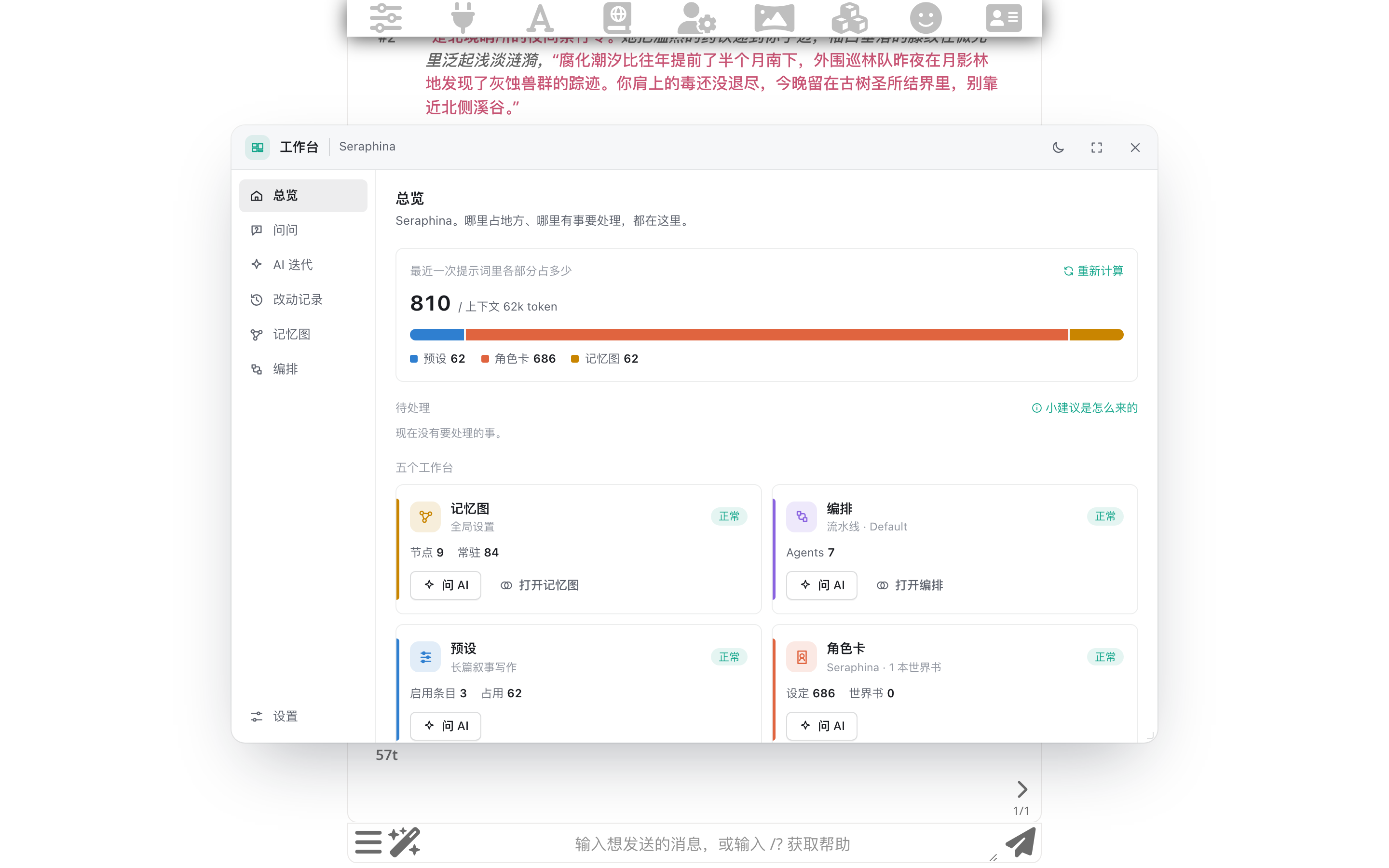
Local suggestions check memory graph, orchestration, preset, and character card data on your device without calling an AI model. Each suggestion explains the numbers behind it and provides an action button to inspect or jump straight to the relevant AI editor.
Q&A
A read-only diagnostic assistant. Ask questions in natural language—for example why a reply was written a certain way, why a request failed, or which part consumes the most tokens.
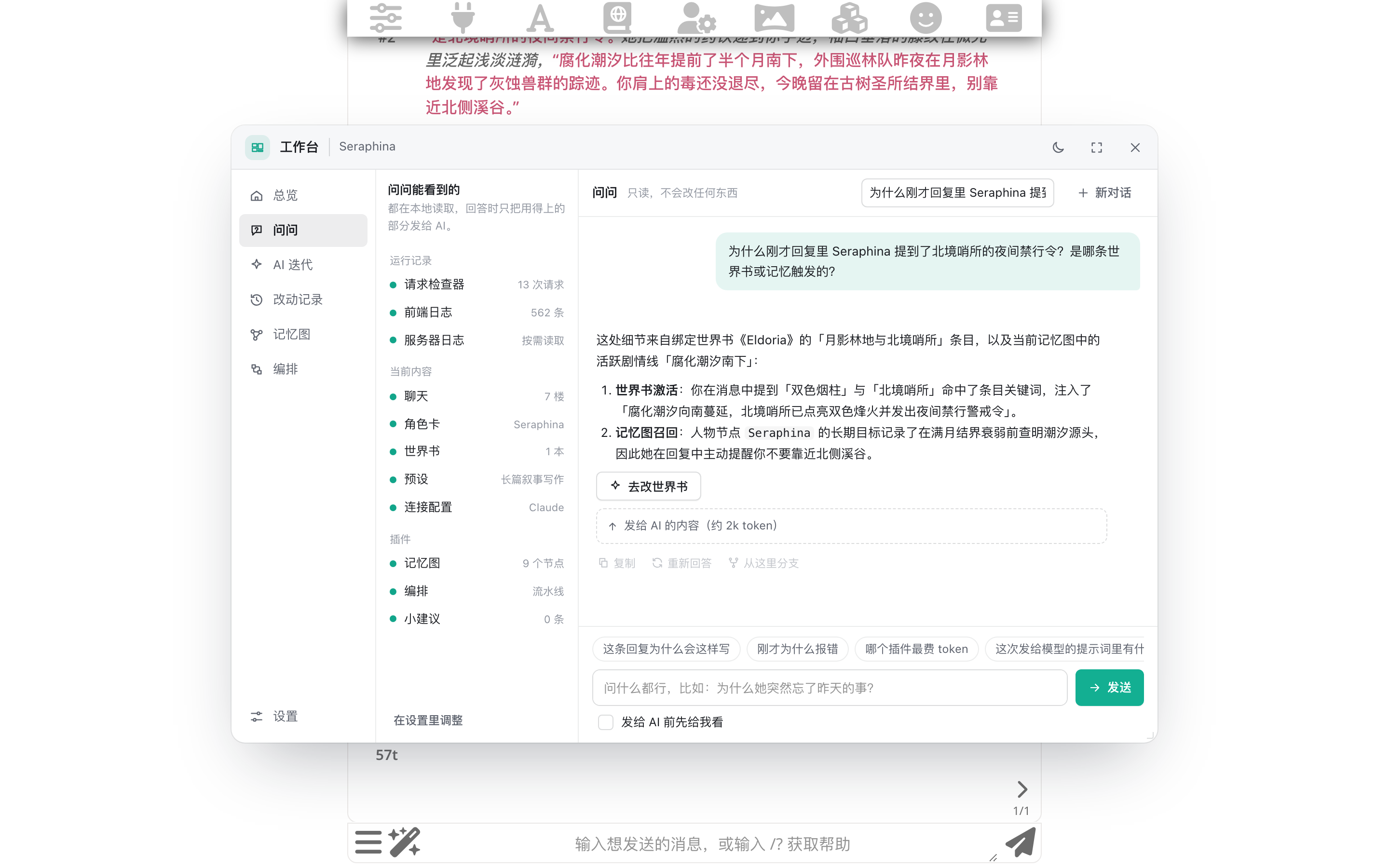
Q&A reads local data on demand: recent chat floors, character card, bound world books, chat completion preset, prompt token breakdown, request inspector history, frontend logs, server logs, memory graph, and orchestration records. API keys and endpoint addresses are redacted before anything leaves your device, and Show me before sending to the AI lets you review the overview first. You can edit an earlier question in a new branch or branch from any answer.
AI iteration
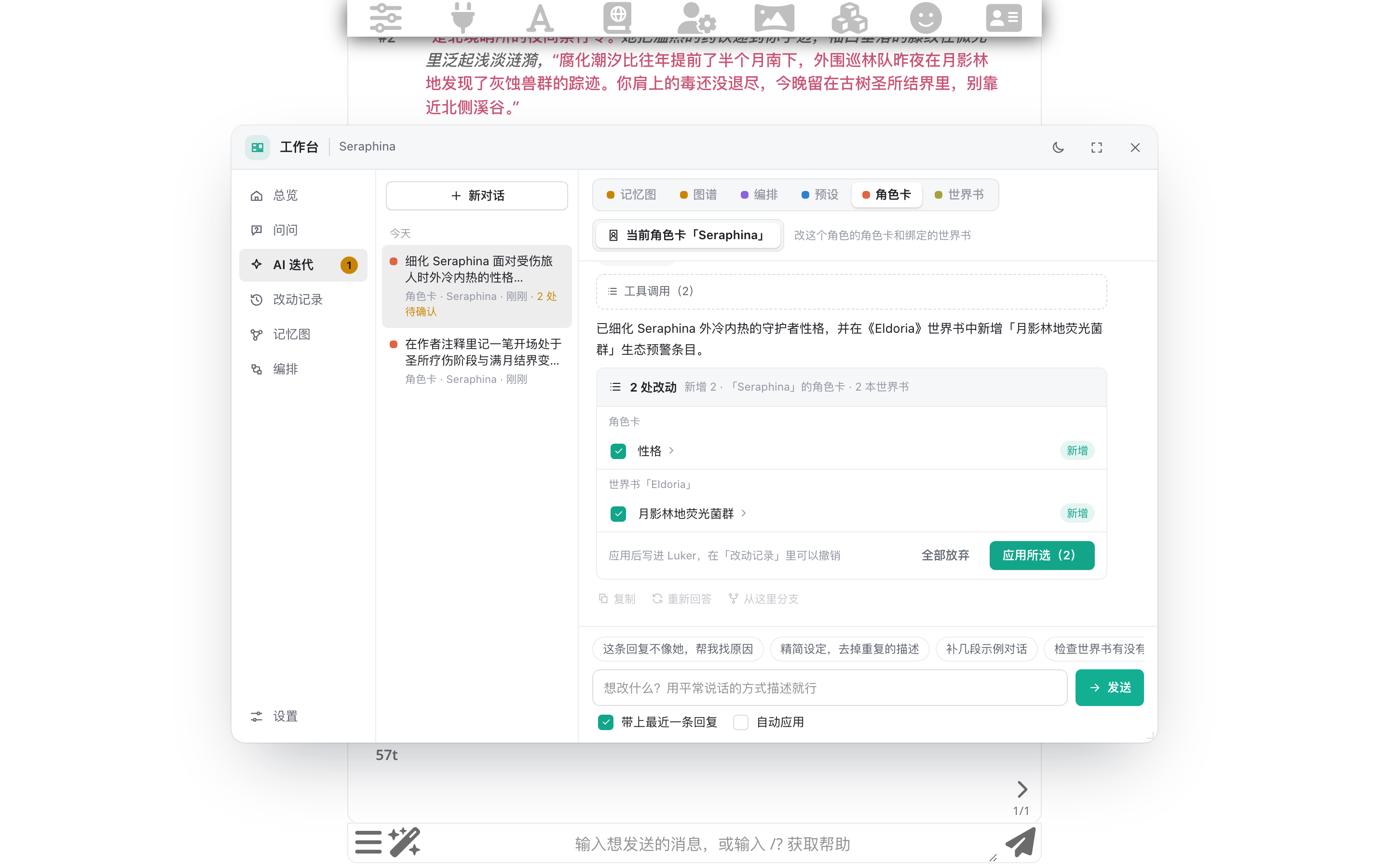
A single conversational workspace for editing Luker artifacts with diff review and rollback. Choose what to edit at the top:
- Memory graph — inspect and repair nodes, fields, and relationships in the current chat's graph.
- Memory structure — add, edit, reorder, or remove memory types, record items, extraction rules, and injection settings, either globally or for the active character.
- Orchestration — tune Spec, Agenda, Loop, and Director profiles, test changes with simulation, diagnose slow or failing runs, author skills, and create custom tools.
- Preset — edit the active Chat Completion preset's parameters and prompt entries, compare against a reference preset, adapt a preset for orchestration or tool tasks, and extract reusable skills.
- Character card — edit the active character card's fields and bound world books.
- World book — edit globally active world books or the books bound to the current character and chat.
- Image Generation — edit illustration prompt presets, exploration prompts, archived character visual profiles, and ComfyUI API-format workflows with live node introspection and draft test generation.
Proposed changes appear in a Change list with before/after diffs. Tick the changes to apply, discard them, or enable Apply automatically to apply edits immediately while keeping every step undoable.
Change history
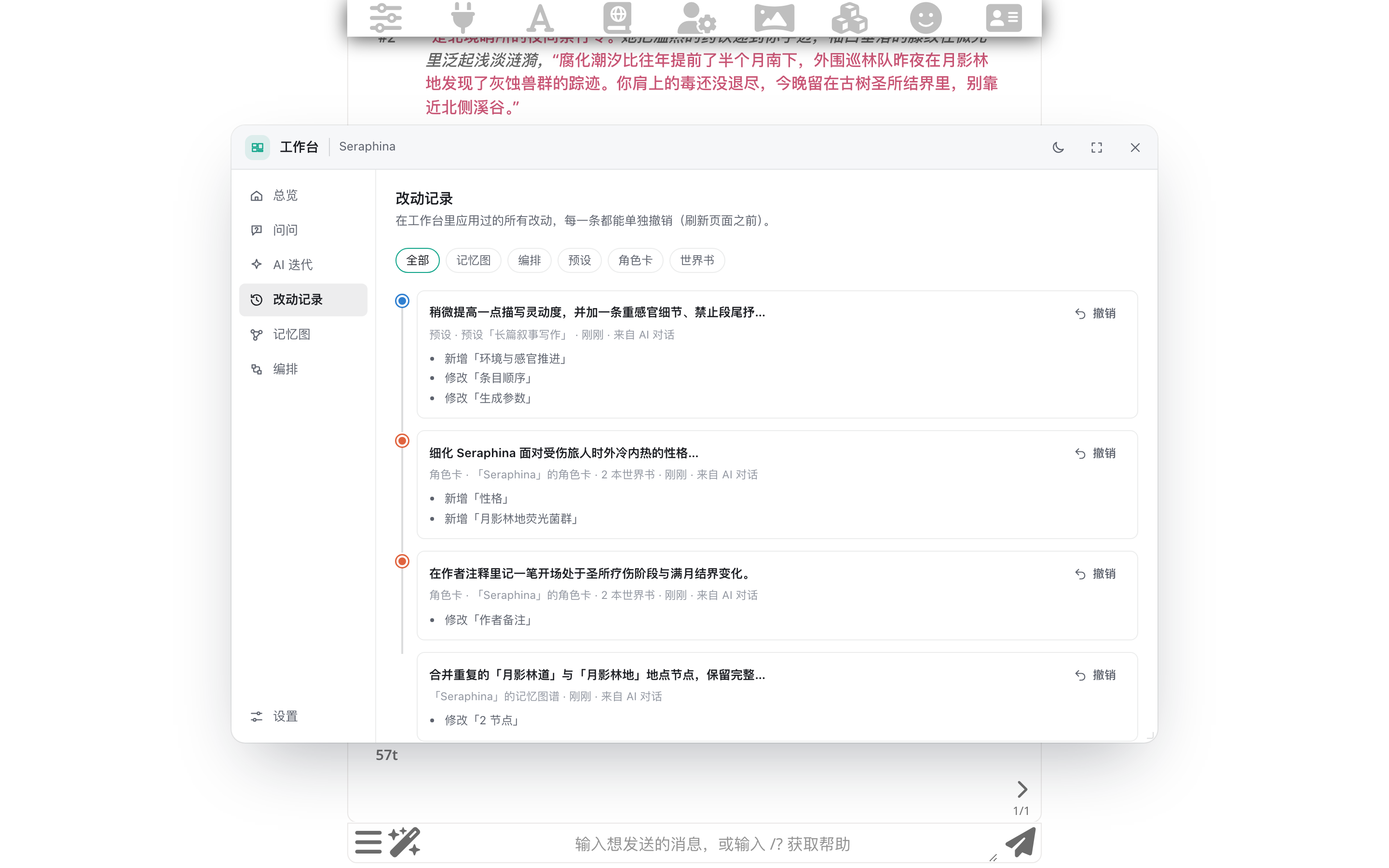
Lists every change applied through AI iteration or a suggestion button during the current session, filterable by workbench. Each entry can be undone individually.
Memory graph
Embeds the full Memory Lens workspace directly inside Workbench:
- Graph — interactive relationship web and chronological layout with node/relation filters and a detail inspector.
- Timeline — chronological story view grouped by summary tiers.
- Data table — tabular view with inline field editing.
- Memory structure — type and field editor, starter templates, import/export, persistent injection controls, and tag filtering.
- Settings — extraction cadence and built-in floor hiding presets, LLM or RAG recall, compression, token trace, and iteration AI selection.
Unsaved changes indicators
When a workspace has unsaved edits—such as Memory Graph settings or structure, Orchestration flow drafts, or Character Archive edits—Workbench highlights the save bar inside the view, marks the sub-tab and left-rail workspace tab with an amber indicator, displays an unsaved state on the collapsed pill, and shows a non-blocking reminder with a quick jump-back button when switching tabs or collapsing the window.
Orchestration
Embeds the full Orchestra Lens workspace directly inside Workbench:
- Flow — visual workflow graph across Pipeline (Spec), Single assistant (Single Agent), Dispatch (Agenda), Research loop (Loop), and Director team (Director) modes; select any agent to inspect or edit its role prompt, task template, model, and tools.
- Run — live and recent run trace with step timeline, tool arguments and results, final output, JSON trace export, and one-click AI diagnosis.
- History — past runs recorded in this browser.
- Stats — per-agent duration and error breakdown with one-click bottleneck diagnosis.
- Setup — preset library management, global vs. character scope switching, skill management, and custom tools.
- Settings — execution mode, shared runtime limits, injection position and depth, and iteration AI selection.
- Notes — open and closed plot threads for the current chat.
Image Generation
Embeds the Image Generation workspace directly inside Workbench:
- Image Studio — conversational workspace for Free image generation and Character reference design, with session branching, gallery history, single-image regeneration, and staged character profile review.
- Character Archive — global library of character appearance tags, outfits, and reference sheets, with a per-launch choice between Fanwork exploration and OC design in studio.
- Run Traces — live and recent illustration and exploration run traces with round timelines, prompts, JSON export, and one-click AI diagnosis.
Settings
Configure one shared AI connection and Generation preset for Q&A and every AI iteration target, or set a target individually.
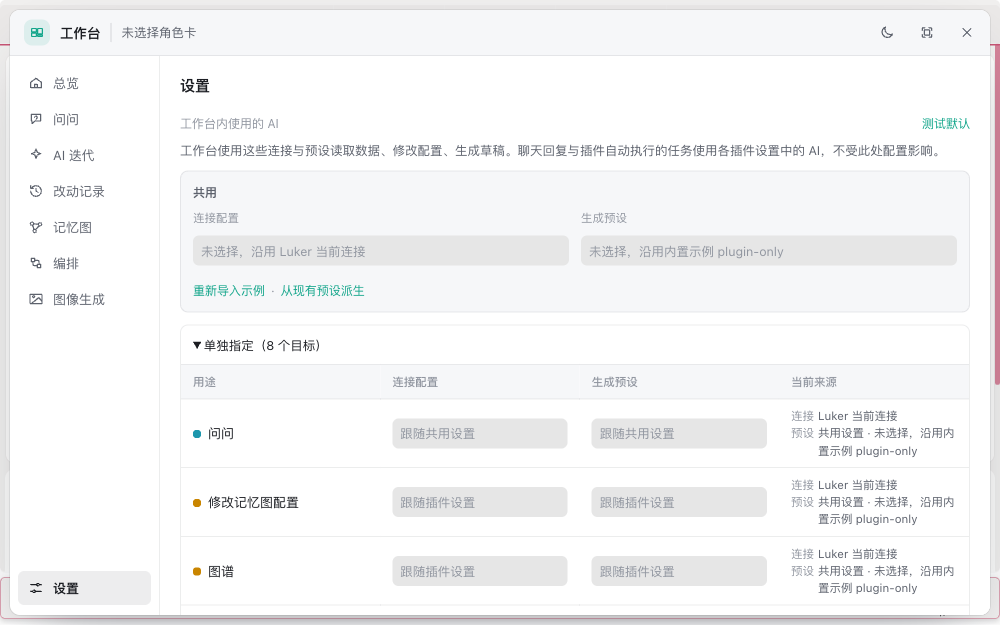
- Shared — the connection profile and generation preset used by targets that follow shared settings.
- Set individually — settings rows for Q&A and each AI iteration target. Follow plugin setting uses the iteration AI configured in the plugin; Follow shared settings uses the shared block. The Current source column resolves each value through target, plugin, shared settings, and the bundled example.
- Example actions — Import example installs the bundled
plugin-onlyexample, Re-import example overwrites an installed copy after confirmation, and Derive from an existing preset opens the preset workspace with the matching editing mode. - Confirmation — toggle whether AI iteration shows changes in a review list before applying.
- Read — choose which local sources Q&A may access, how many surrounding chat floors to include, whether to redact secrets, and whether to preview before sending.
- Window — toggle the corner entry pill, choose Workbench default size (
Small window/Large window), configure the shared Run panel auto-open toggle and Run panel default size, set theAlt+Wshortcut, or reset both windows' desktop and mobile positions immediately. - Suggestions — enable or disable individual local check rules.
- Prompts — inspect the system prompts used by Q&A and each AI iteration target, and toggle the workbench instruction prefix.
Related pages
- Memory Graph — long-term memory extraction, recall, and structure
- Multi-Agent Orchestration — workflow modes, presets, and skills
- Completion Preset Assistant — preset editing modes and skill extraction
- Character Card Editor Assistant — character card editing and CardApp Studio
- Image Generation & AI Illustration — image backends, reference images, character archive, and Studio workflows
- Workbench Extension API — register custom workspaces, iteration targets, Q&A providers, and suggestion rules