Popup Mode
For regular character cards without a CardApp, "Open Editor" opens an AI conversation panel as a popup. You can describe the changes you want in natural language, the AI executes them via tool calls, and every step is gated by your diff approval.
Cards with CardApp use Studio
For character cards that embed a CardApp under data.extensions.card_app, "Open Editor" automatically launches the more capable CardApp Studio instead of the popup described here.
Popup Layout
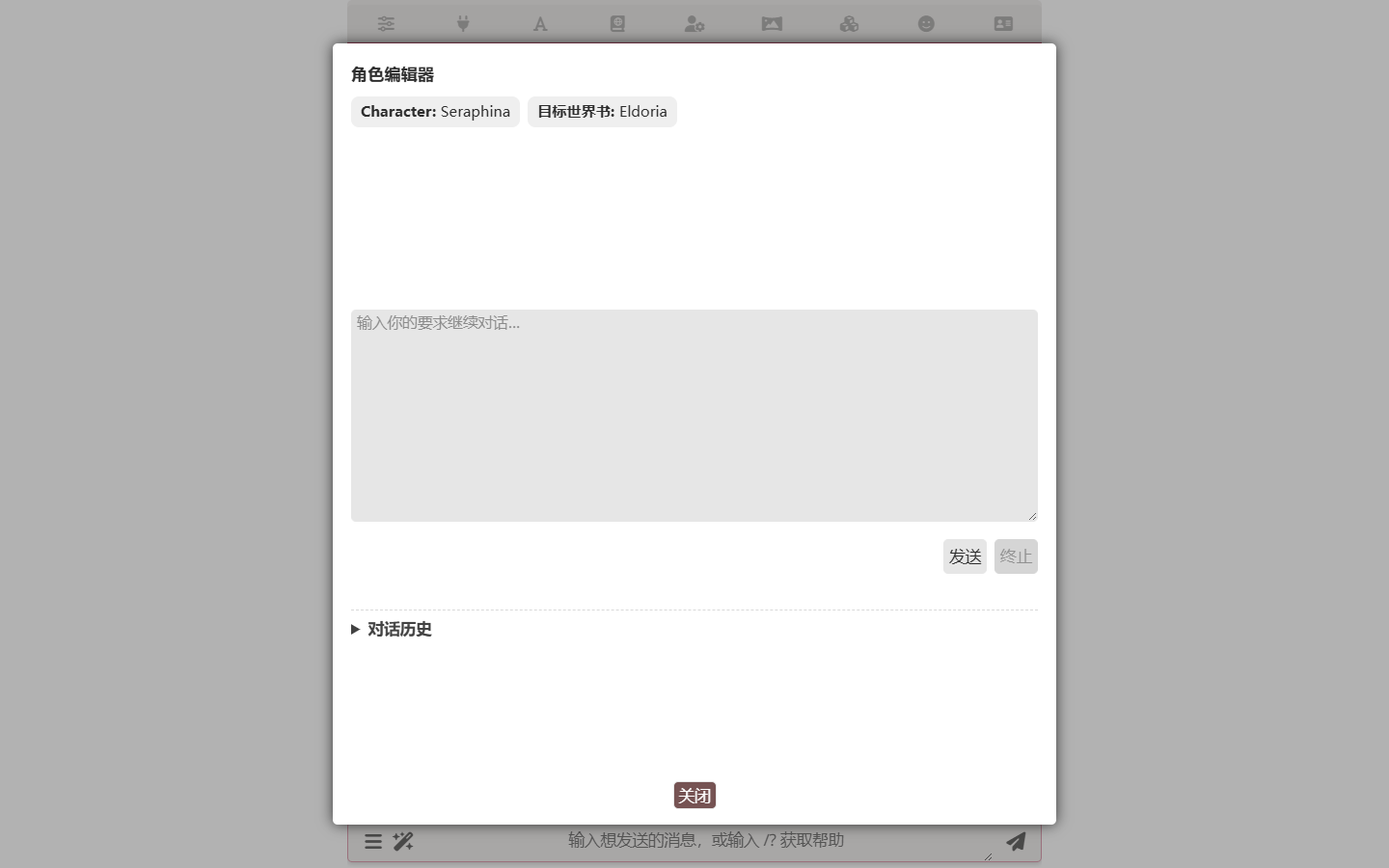
The top of the popup shows the current character name and the bound primary World Info book. The middle area is the AI conversation. The bottom holds the input field, send/abort buttons, and a collapsible "Conversation history" panel.
Supported Operations
The AI inside the popup can perform the following operations via tool calls:
- Modify character card fields — Name, description, personality, scenario, first message, example dialogue, system prompt, jailbreak prompt, creator's notes, etc.
- Manage World Info entries — Create, update, delete entries
- Query World Info — Search entries by keyword, query by activation conditions, fetch entry details
- Set primary World Info — Change the World Info book bound to the character card
- Simulate prompt — Preview the actual prompt structure that will be sent to the model under current settings
Diff Approval
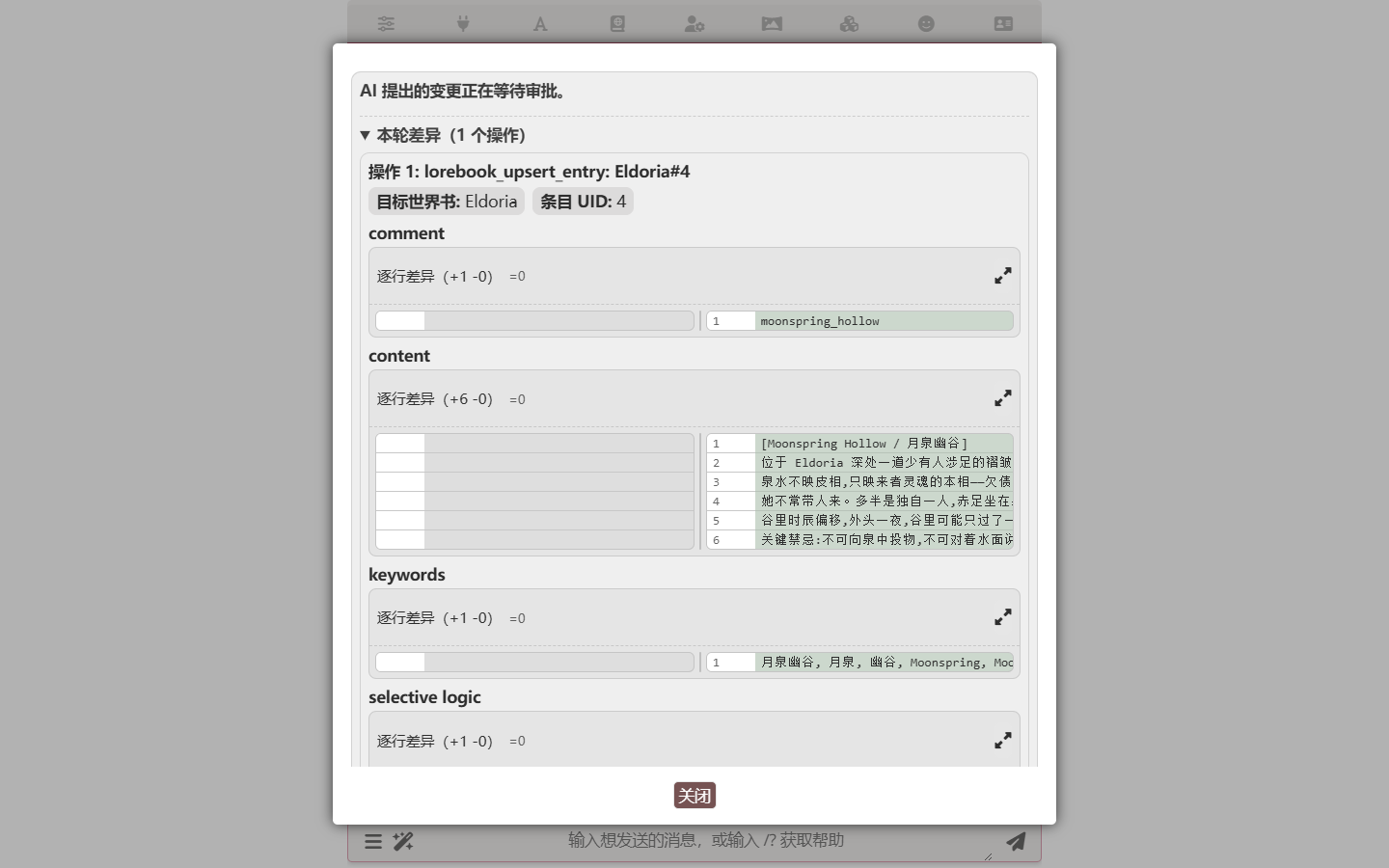
After each AI modification, the system shows the before/after diff per field in the pending area, waiting for your approval:
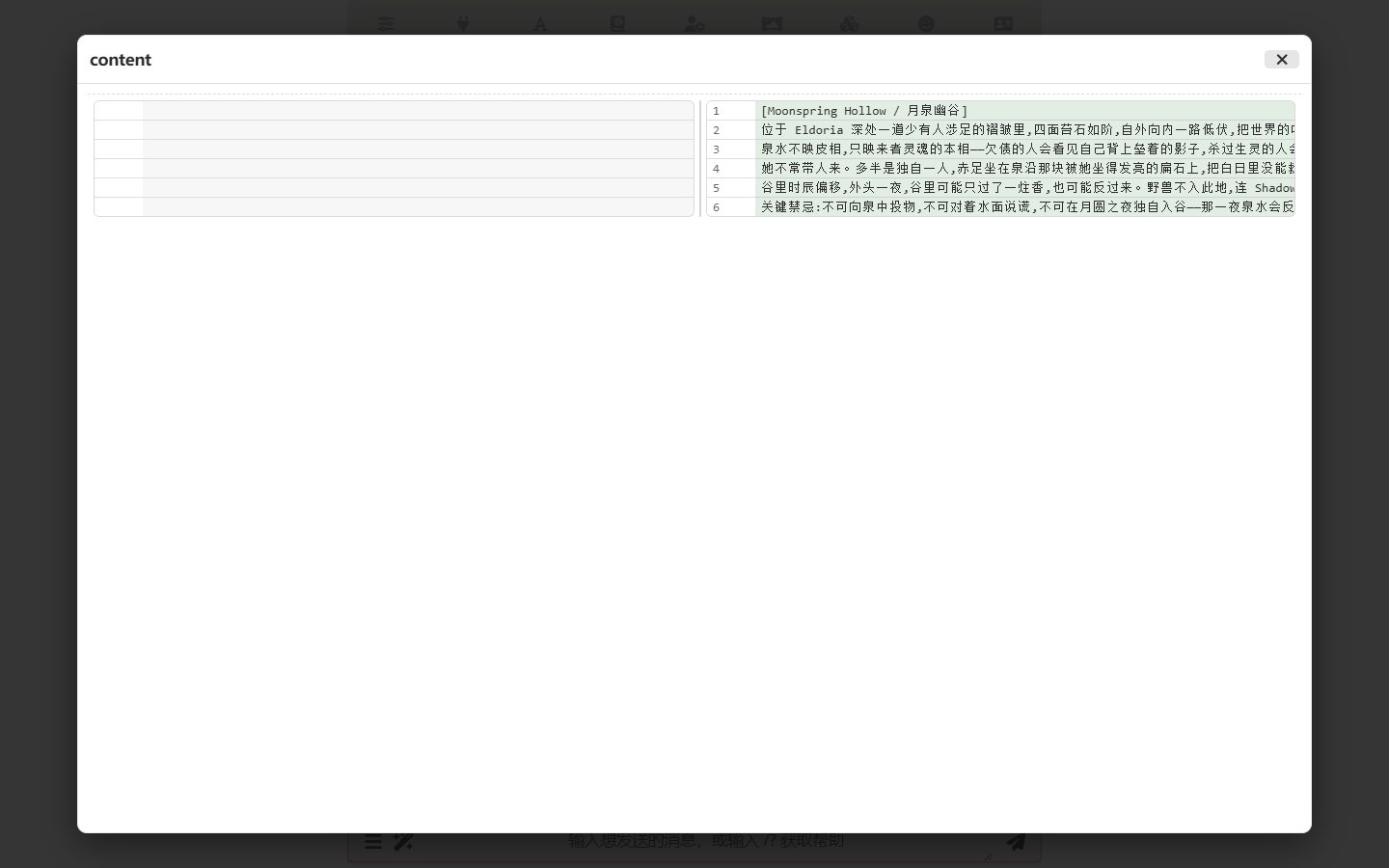
Each field's diff has a zoom icon in the top-right; click to expand into a line-by-line side-by-side view, useful for inspecting long text such as World Info content:
Below each batch of changes you'll find "Approve batch" / "Reject batch" buttons; you can also act on individual diffs:
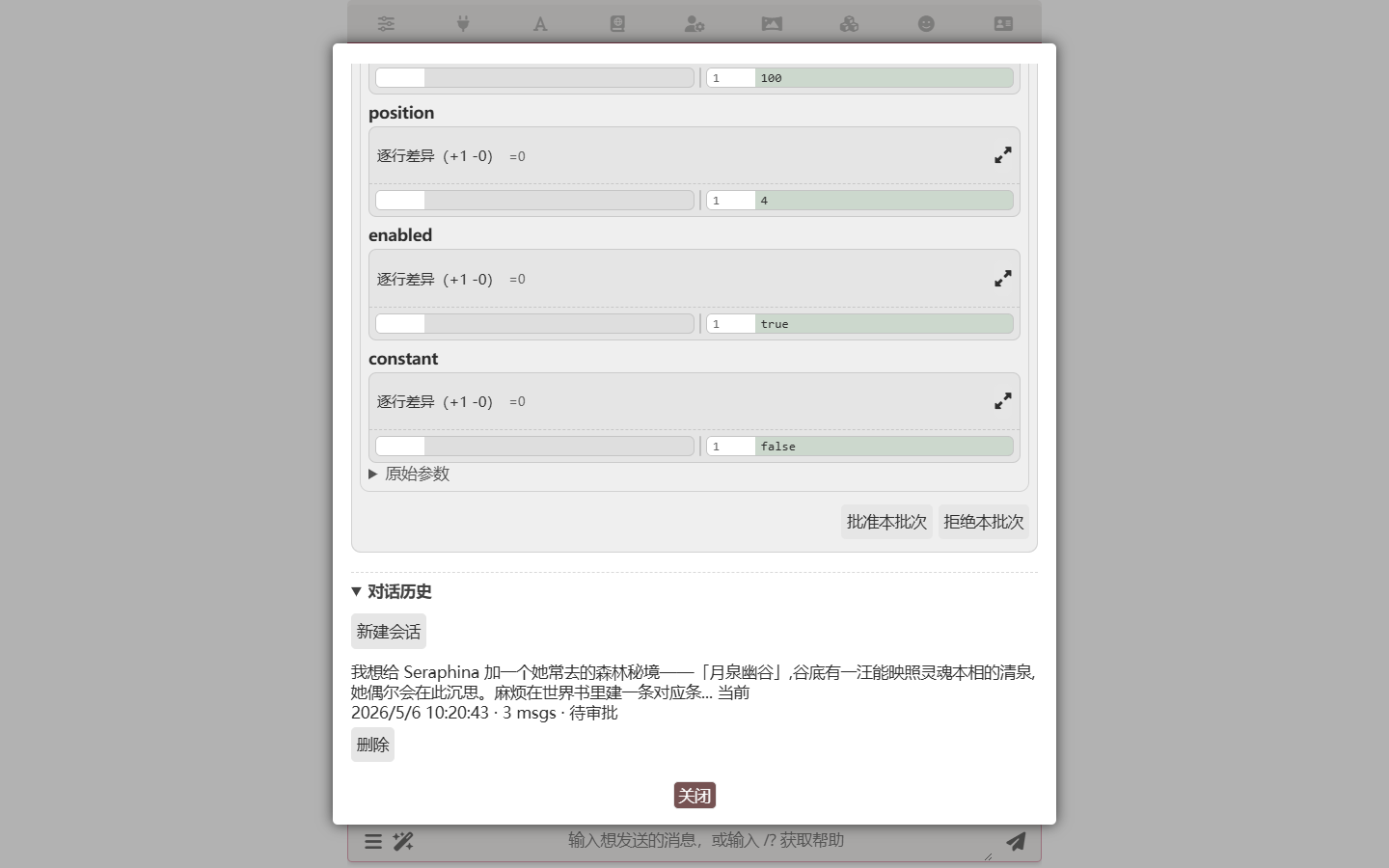
Only changes you explicitly approve take effect; rejected changes are discarded. Approved fields are recorded in modification history and can be rolled back at any time.
Session Management
Expanding "Conversation history" at the bottom of the popup reveals all editing sessions for the current character:
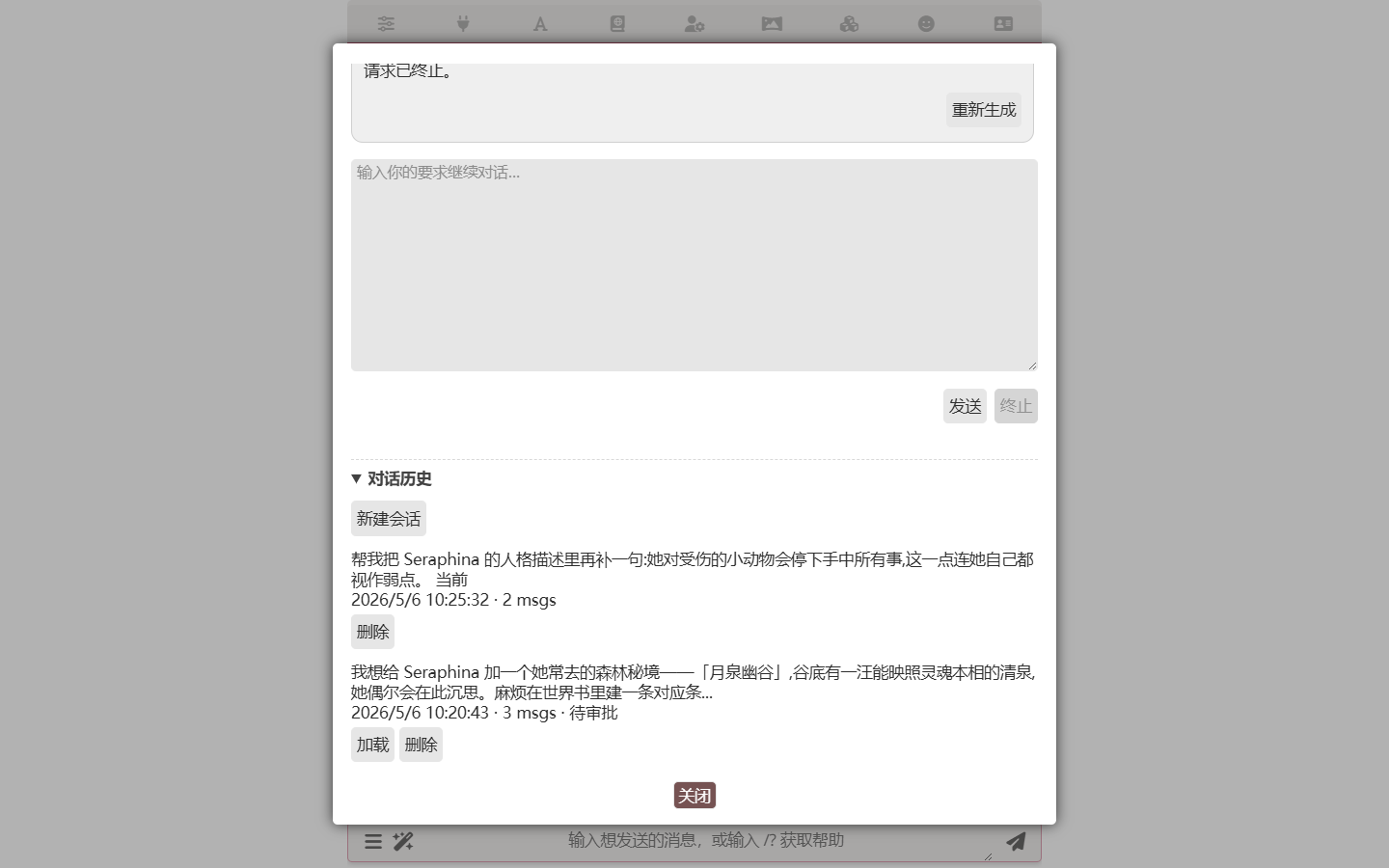
- Create, switch, delete sessions; previous sessions are auto-titled by the AI from the first message
- Each character retains up to 24 sessions; the oldest are auto-cleaned when exceeded
- Session content is persisted; closing and reopening the popup keeps everything, including pending diffs
World Info Sync
When you import a new character card via replace or update, if the new card carries an embedded world book (or the cards bind to different world books), the editor assistant pops up a sync dialog with three options:
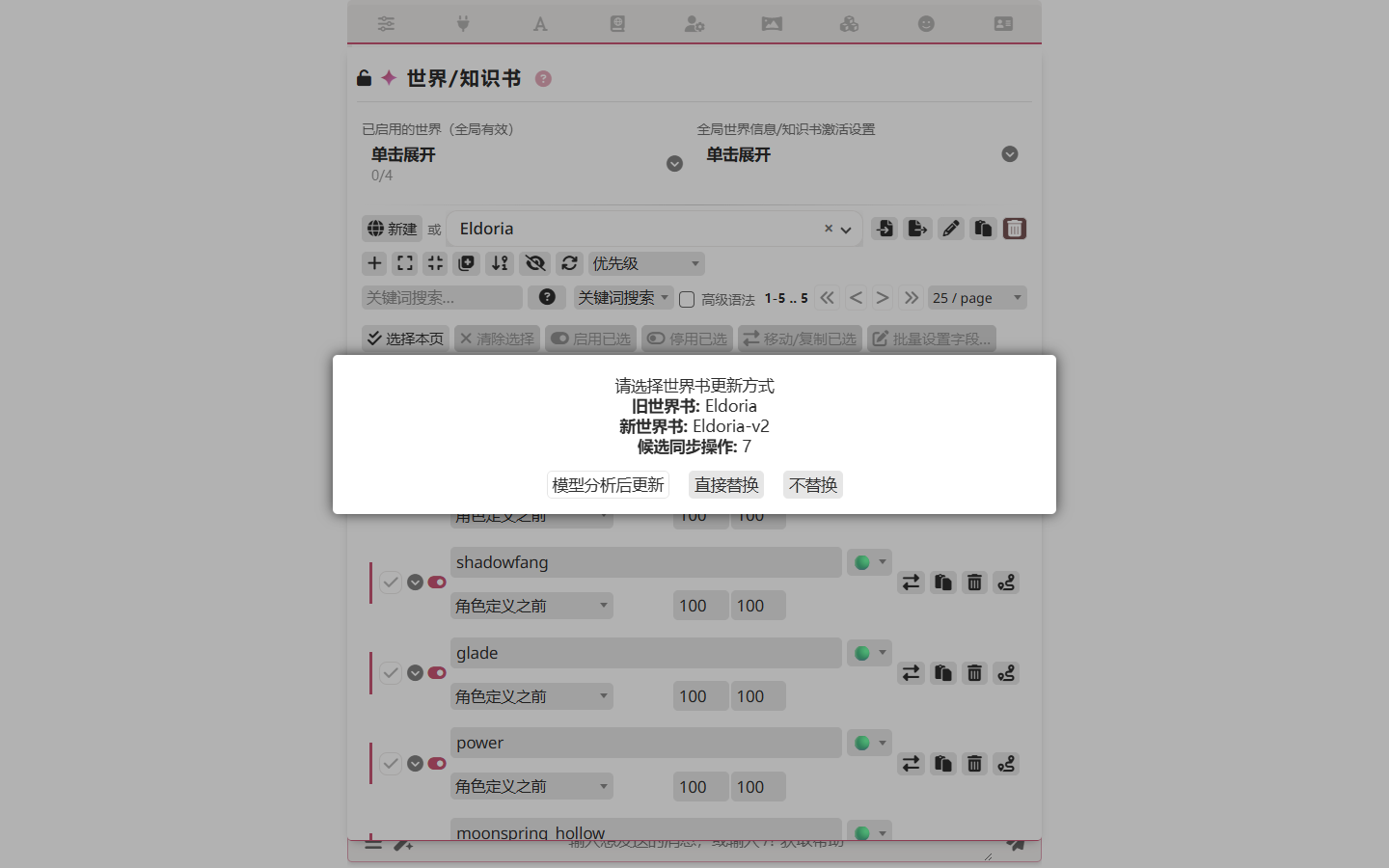
- Import new book — Save the new card's embedded world book as a standalone file and bind it to this character. Use when you want the new card's shipped lore verbatim.
- Keep old book — Re-bind the previously bound book and ignore the new card's embedded book. Use when you only wanted to refresh the character fields.
- Merge in editor — Open the iteration studio with a prev-vs-next diff so an AI can carry your earlier edits forward into the new book. Use when you have hand-curated additions to preserve.
Cancelling the dialog leaves everything untouched.
When you take the Merge in editor path, the studio's topbar carries a View full replace diff button. It opens a structured, full-screen overview of the differences between the character card + world book you were using before and the ones you just imported — the same information the AI receives as its first-turn brief, but shown to you with per-field cards, per-entry line diffs, and word-level red/green highlights:
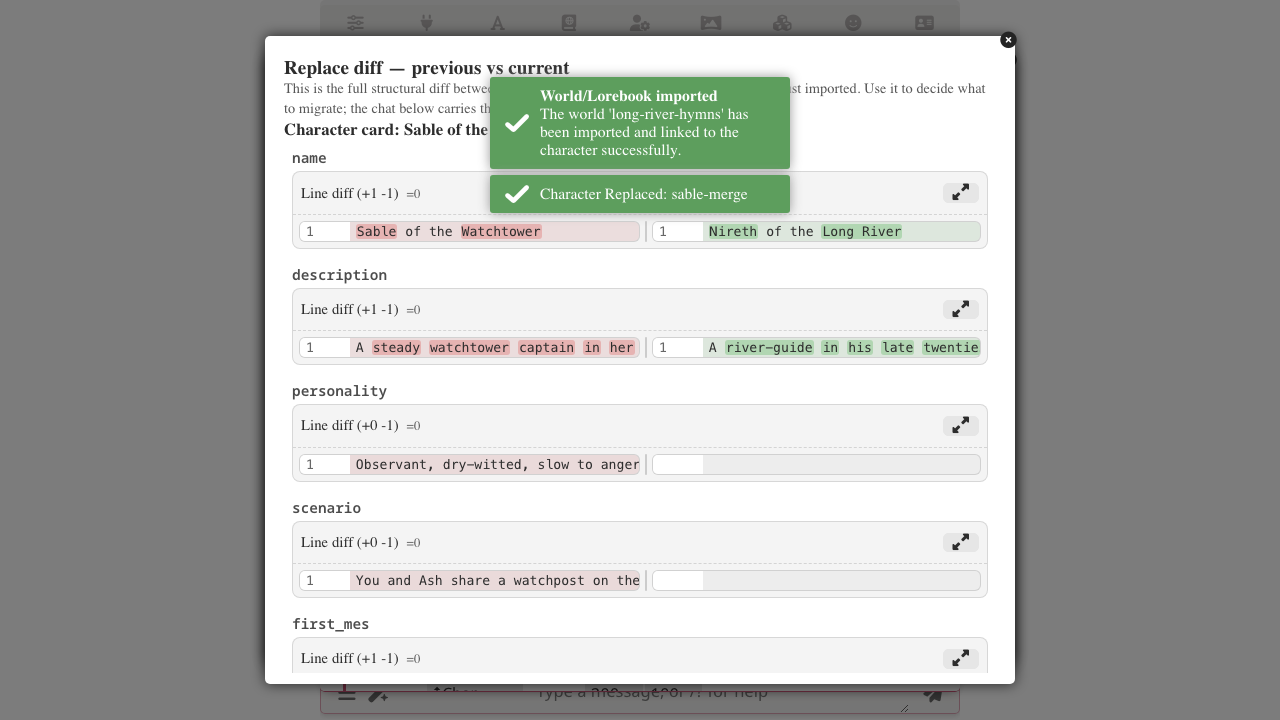
If you close the studio without applying any AI-proposed change, the pre-import (new book file + character binding) is rolled back automatically, so cancelling a merge session leaves your working state exactly as it was before the replace.
Whether the sync popup shows up is controlled by the "Enable World Info sync popup after replacing/updating a character card" toggle on the extensions panel.
Related Pages
- Editor Assistant Overview — Shared capabilities and entry points
- CardApp Studio — Full dev environment for cards with CardApp
- Search Tools — Web search inside the popup
- State System — Character state and chat state