Multi-agent setup: presets, memory graph, web search
What this doc solves
Luker's multi-agent orchestrator, memory graph, and search tools each work independently, but coordinating them into a single flow (an agent team that extracts memories, retrieves canon, and drafts the prose) requires several configuration steps performed in order.
This doc starts from an empty configuration and guides you through preset → Director → memory → search end to end. It does not assume that you have read the deep-dive docs above. By the end, you will have a working default setup that you can continue tuning in the Iteration Studio.
What you get
After you finish this doc, when you send a message in the main chat, the main LLM does not begin writing immediately — an agent team executes first:
memory_scoutscans the memory graph and retrieves the characters / events / locations relevant to the current beatcanon_scout(when needed) retrieves fandom canon from the webplot_brainstormerdrafts several structural sketches from different angles in parallel; the main agent selects one- Main agent uses the scouts' output to write the final body directly
memory_curatorwrites new facts back to the memory graph after the draft is complete
The memory graph's Auto extraction / Auto compression are entirely delegated to the agents, and the search provider defaults to DuckDuckGo — no API key, no embeddings, and no additional LLM routing are required.
How the team is organized

The memory graph's own "Auto extraction / Auto compression" no longer triggers — the agent performs the same work. Once a search provider is enabled, canon_scout can perform web searches; otherwise it returns zero results.
What you need first
- A working Luker instance in which the main chat already produces replies
- A working RP preset, ideally already configured with style guidance, jailbreak, and NSFW direction
Step 1 — Pick a starting preset
Any RP preset you normally use is suitable. This step only confirms that you have a writing preset as a starting point; the next step derives from it the preset variants Director requires.
Step 2 — Configure the Preset Assistant and derive the presets Director needs
LLM calls made by Luker's plugins fall into distinct categories with very different preset needs. One is plugins producing RP content — Director's agent team drafting the body, critic sub-agents reviewing, and so on — which requires a full RP preset with jailbreak / style / anti-cliché guidance. The other is the iteration AI that powers various plugins — the Preset Assistant, the Memory Graph configuration studio, CardApp Studio, Director's Iteration Studio, and so on — which uses tool calls to edit configs or extract structured data; any RP instructions leaking in will interfere with the model executing the plugin's instructions, so these slots require a stripped-down preset that retains only jailbreak.
Director's flow touches these categories at once:
| Path | Who uses it | Preset shape |
|---|---|---|
| Agent path — main agent + sub-agents producing the body | The actual drafters; their output ends up in the chat | A standard RP preset, tuned for tool calling: keeps jailbreak + style + anti-cliché, but drops placeholders / hard schemas that conflict with the orchestrator |
| Iteration Studio path — the AI you talk to inside the studio when tuning your config | A tool-using config editor; never drafts story prose | A stripped-down preset with only jailbreak left — no style guidance, no NSFW writing rules, no narrative meta-rules |
Why the paths cannot share a single preset
RP presets assume that "one LLM writes the entire reply by itself." When those instructions are placed into an agent tool loop, they:
- Compete with the agent's system prompt for attention
- Force "must output schema" / "mandatory chain of thought" constraints into the drafting step, breaking tool calling
- Re-inject placeholders (character description, persona, world info entries) that the orchestrator's main path already injects
The Iteration Studio is even more sensitive — it does not write story prose at all; it edits a JSON config through tool calls. Any RP instruction that leaks in interferes with the model executing the plugin's instructions.
2a — Configure the Preset Assistant itself
The Preset Assistant is the tool used in 2b to derive the agent preset, but it is itself an LLM-driven tool — it requires its own iteration AI preset and API profile before it can be opened.
Open the Extensions drawer (#extensions_settings2 — the same drawer that holds the Orchestrator, Memory, and Search Tools panels). Locate the Completion Preset Assistant panel and configure the following fields:
- Iteration AI prompt preset (params + prompt) — click the ? button next to this field
- Iteration AI API preset (Connection profile) — select any working API profile
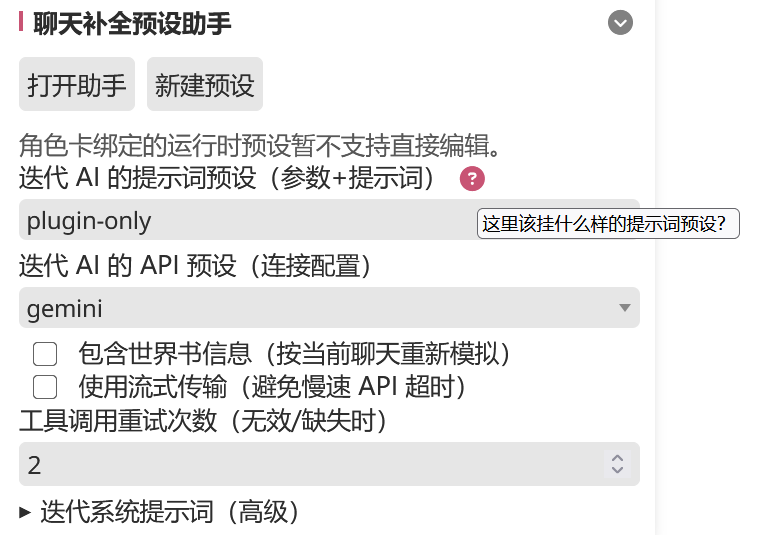
The ? button opens an explainer popup with an Import plugin-only preset button at the bottom — clicking it imports Luker's bundled clean preset and selects it here automatically.
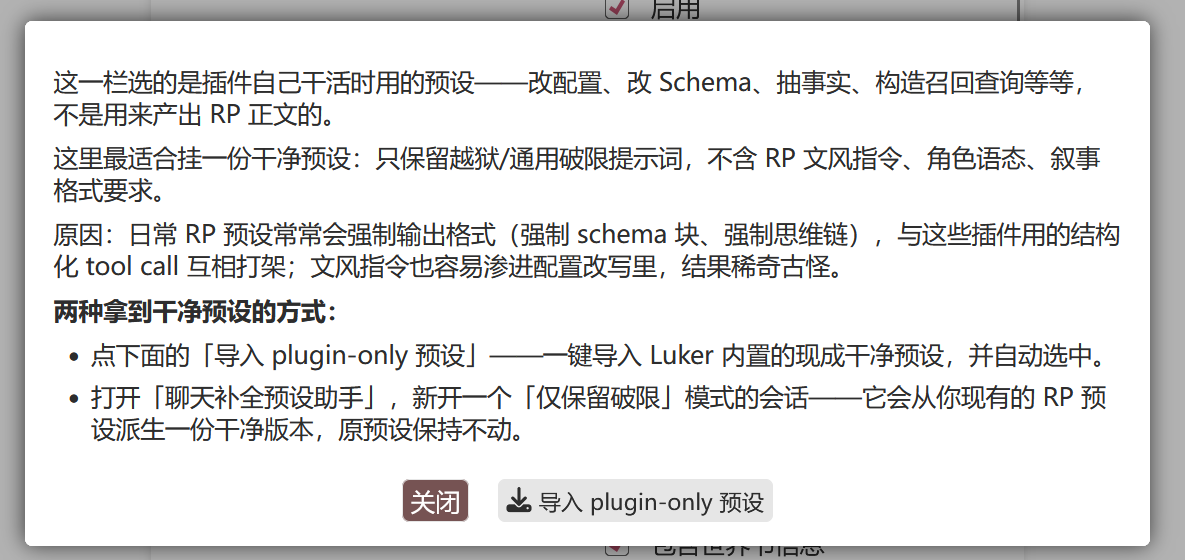
Other Luker plugins with their own iteration AI (Director's Iteration Studio, Memory Graph schema studio, CardApp Studio, etc.) expose the same ? button next to their preset selector — the same import applies there as well.
2b — Derive the agent preset
Now that the Preset Assistant is configured, click Open Assistant in the same panel. In the popup, set the Editing mode dropdown to Adapt for orchestrator, then instruct it:
Convert this preset into an agent-only preset
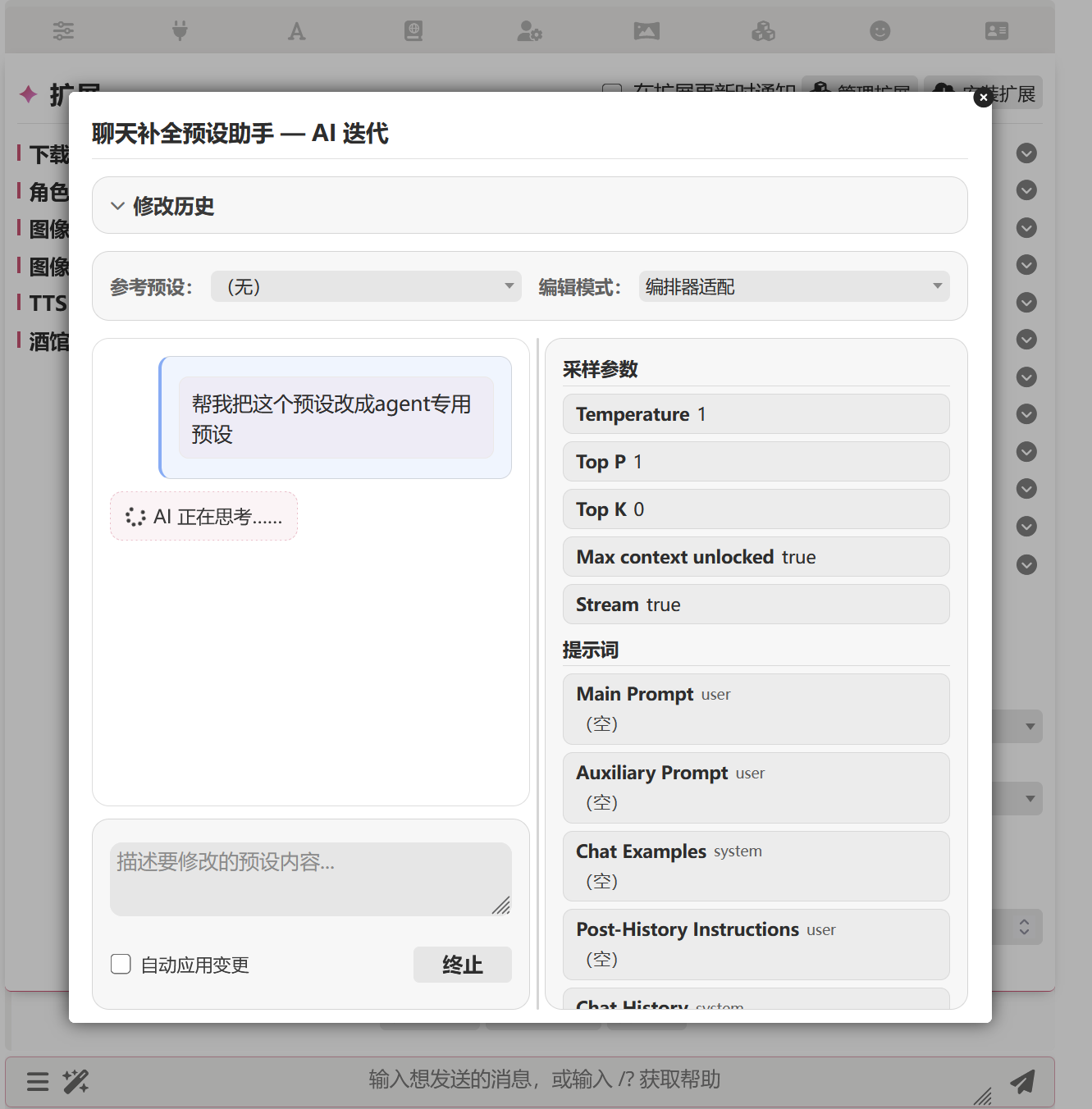
By default it derives a new preset (original name + -orchestrator suffix) — the original remains untouched. It automatically:
- Disables placeholders that would be double-injected alongside the orchestrator's main path: character description, persona, example messages, explicit world info
- Rewrites format constraints that would interfere with tool calling (forced schema, fixed CoT headers) from hard requirements into soft hints
- Gates instructions that only matter for the final draft (summaries, style sign-off) to the "final commit message" phase
- Keeps chat history, style guidance, and jailbreak / anti-cliché instructions — the main agent reads them while drafting, and the critic sub-agents read them while reviewing
Review its diff and approve each entry.
Refine the preset further in the same session
Adapt for orchestrator is one of the assistant's Editing modes. Switch the toolbar's Editing mode back to the default General editing, start a new session, and the same assistant becomes a general-purpose preset editor — for example: "add an anti-cliché directive backed by a few negative examples", "tone the prose-style guidance down from purple to restrained close-detail", or "merge these three rules that express the same requirement". See Preset Assistant for the full details.
The Adapt-for-orchestrator pass also proactively scans your preset entries for reusable style / format / writing-discipline rules and proposes lifting them into shareable skills (verbatim, at this preset's scope, with a pointer left in the original entry). Proposals are reviewed independently — approve, reject, or ignore one and the rest of the adaptation still applies. See Authoring skills from preset content for the rationale and the safeguards (one-off tweaks never trigger the scan).
Step 3 — Switch to Director mode and configure the presets
Open the Orchestrator panel in the Extensions drawer:
- Set Execution mode to Director
- Set the API preset (Connection profile) + Prompt preset to the
-orchestratorpreset from Step 2b - Find the AI Iteration Studio configuration section and set its Iteration AI API preset (Connection profile) + Iteration AI prompt preset (params + prompt) to the plugin-only preset already imported in Step 2a
Step 4 — Delegate memory extraction and recall to the agents
Open the Memory panel in the Extensions drawer:
- Enabled ✓ leave enabled
- Auto extraction ✗ disable (the curator sub-agent takes over)
- Auto compression ✗ disable (the agent handles it during housekeeping)
- Enable recall injection ✗ disable (a scout sub-agent already runs an LLM-level recall pass before drafting; leaving the built-in injector enabled would duplicate the recall and contaminate the main agent's context)
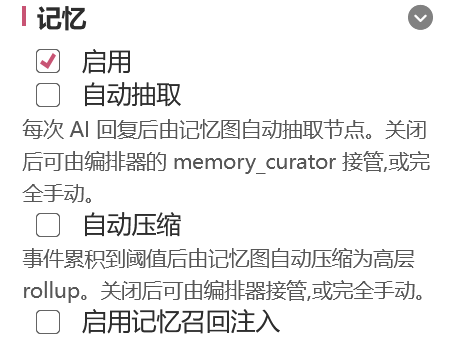
Prefer the memory graph's built-in extraction, recall, and compression?
The default Director configuration claims extraction / recall / compression for itself. If you trust the memory graph's own pipeline more (already configured with multi-model routing, Hybrid + Rerank, etc.):
- Re-enable Auto extraction, Auto compression, and Enable recall injection
- In the iteration studio (Step 6), tell the studio AI: "I want to manage memory myself with the built-in memory graph; the agents shouldn't touch it."
- The studio AI will modify your orchestrator configuration through tool calls — review entry by entry and save.
Step 5 — Pick a search engine
Open the Search Tools panel in the Extensions drawer. Search provider defaults to DuckDuckGo (no login) — keep the default. To use a different engine, pick another provider from the dropdown, such as the self-hosted SearXNG (custom instance) or an API-key provider.
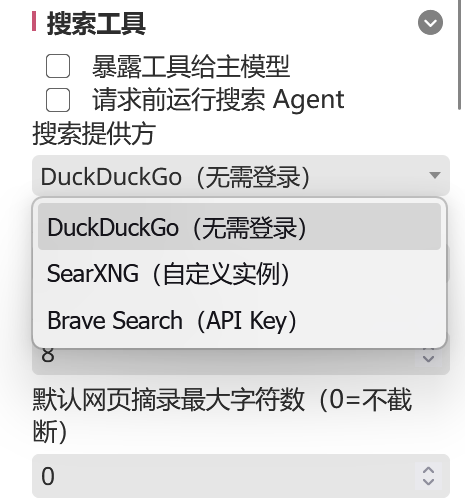
How the top toggles relate to this flow
Expose tools to main model and Run pre-request search agent are the search tool's independent working modes, unrelated to Director — this flow uses Director's own search sub-agent, and neither of those toggles needs to be enabled.
If you are not running Director and still want search, see the search tool's working modes instead.
Step 6 — Making changes in the Iteration Studio
After switching to Director, click Open AI Iteration Studio in the Orchestrator panel — this is the entry point for all further customization.
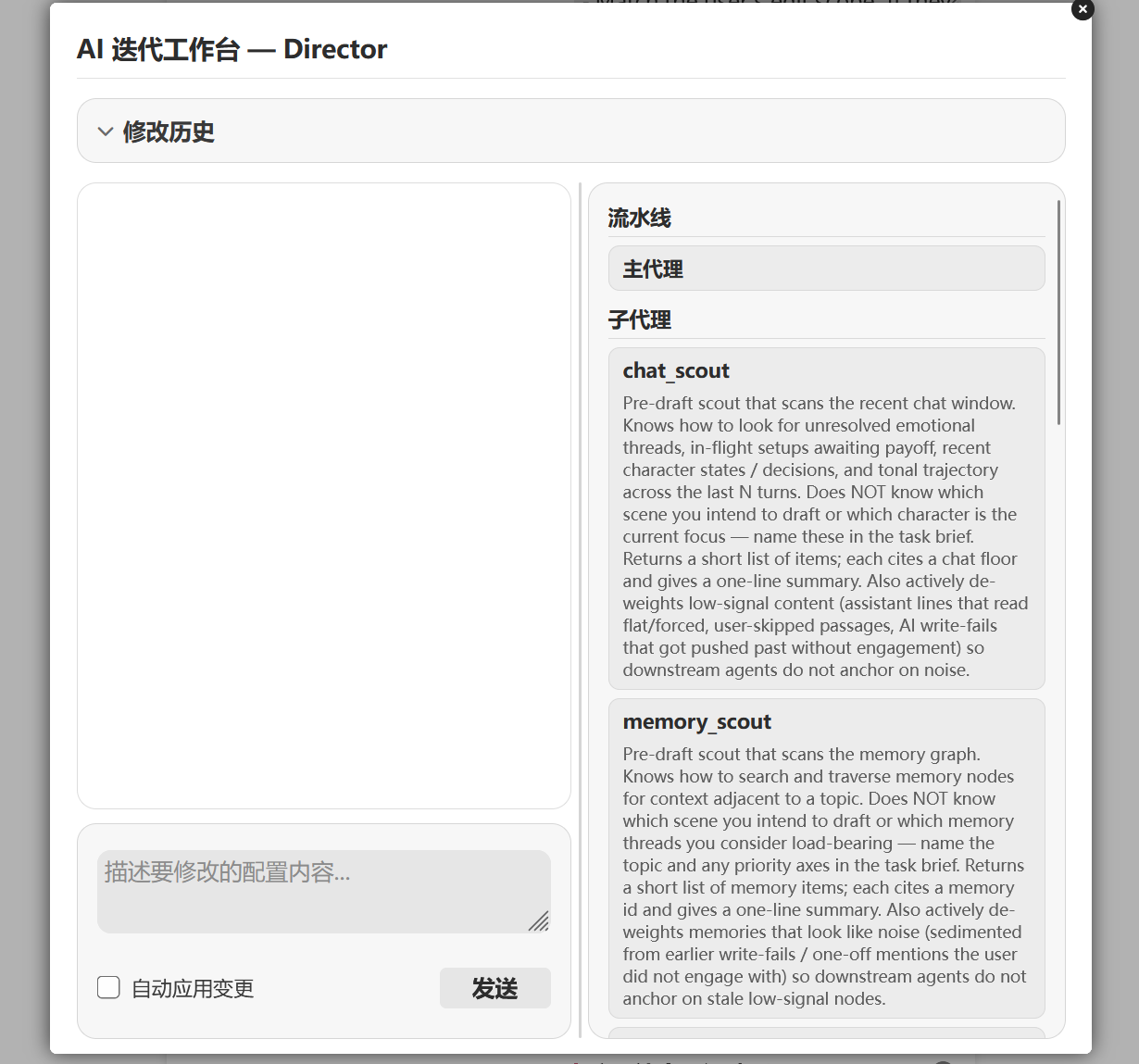
Which configuration the studio edits depends on when you open it:
- No character chat open → the studio edits the global default config — all cards without overrides inherit it
- A character chat is open → the studio edits this card's override — only this card is affected, and the override travels with the card on export / import
A successful per-card profile can be promoted to global
If you iterate a Director profile that works particularly well for a specific card, you can promote it manually: export that card's profile from the Orchestrator panel, clear the current chat to return to a no-card state, then import that profile to global. The same applies to schemas.
Global scope — example instructions
- "I don't want agents managing memory. Remove the ones doing extraction and recall."
- "I don't want agents searching for canon online. Remove the search sub-agent."
- "Read the image-generation guidance from world info, then add a sub-agent that — after the body is drafted — figures out where to insert illustrations and what prompts to use."
- "Read the variable-update guidance from world info, then add a sub-agent that — after the body is drafted — figures out how variables should update."
Per-card scope — example instructions
- "Tailor the main agent prompt to this card's setting and current plot — give it a specific writing discipline."
- "This card has custom stamina / mood variables. When the memory curator extracts, prioritize filling those fields."
- Anything specific to this card's genre that does not belong in the global config.
The studio presents the diff entry by entry — review, approve, and save. If the result does not match your intent, reset to the default Director config.
Step 7 (optional) — Let AI iterate your schema
The memory graph schema can also be iterated by AI. In the Memory panel, click AI Configure Memory Graph to open the Memory Graph Configuration Studio.
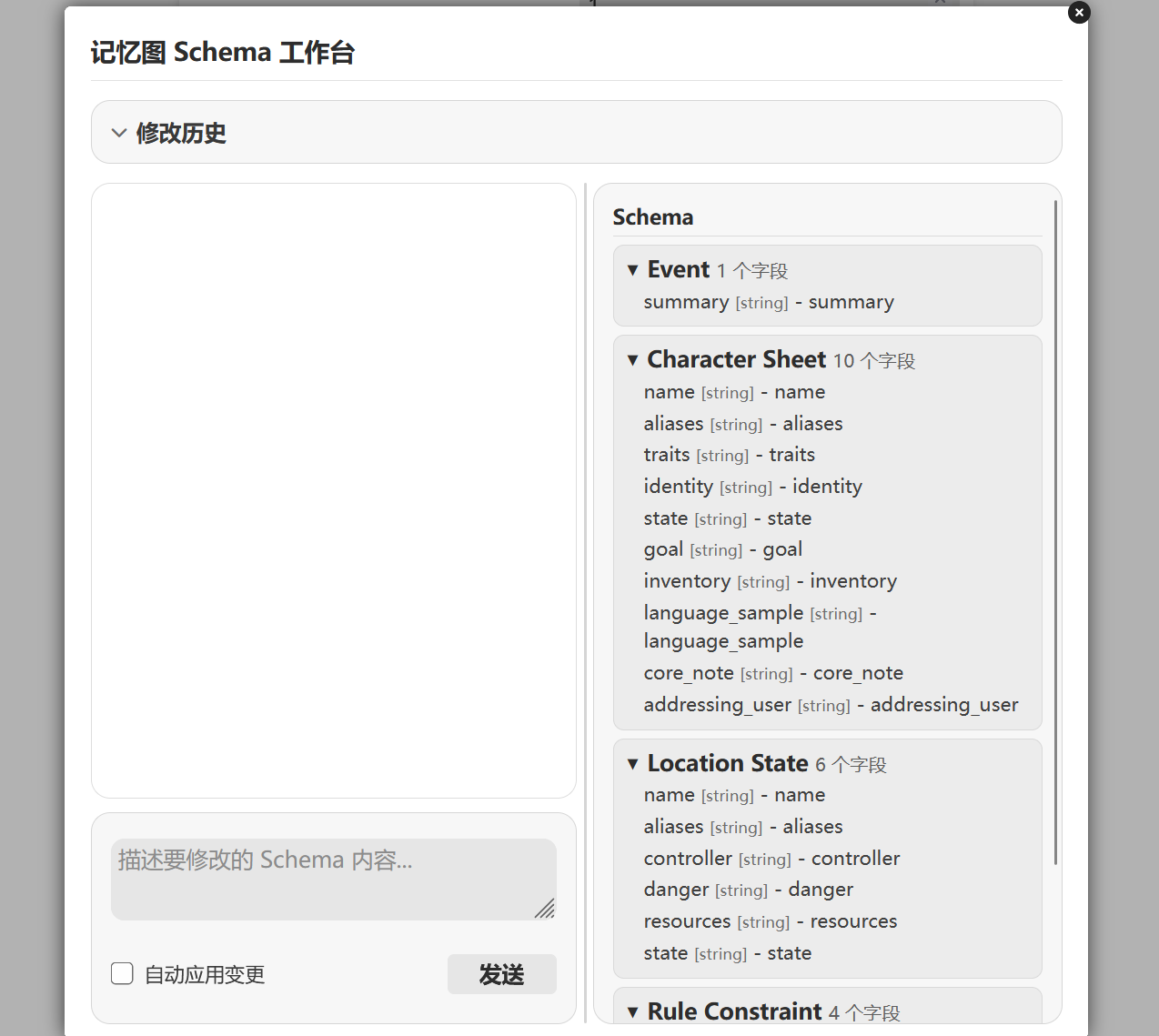
Like orchestration configurations, schemas have both global and per-card scope — per-card schemas travel with the card on export. Use the studio to tailor the schema for a genre, for example:
- Xianxia / cultivation: add
cultivation_realm,spirit_meridianfields to characters - Political intrigue: add a
factionnode type, tracking alliances and enmities - Survival: add
inventory_itemnodes, tracking each item's durability and state
Do not forget the memory graph's iteration AI preset
The Configuration Iteration Prompt (configuration-editor AI) field in the Memory panel belongs to the same "iteration AI path" mentioned in Step 2a — its preset selector also has a ? button; if you already imported plugin-only in Step 2a, select it from the dropdown here.
See it in action
Send a message in the main chat and expand the reasoning fold to see the agent team at work in real time:
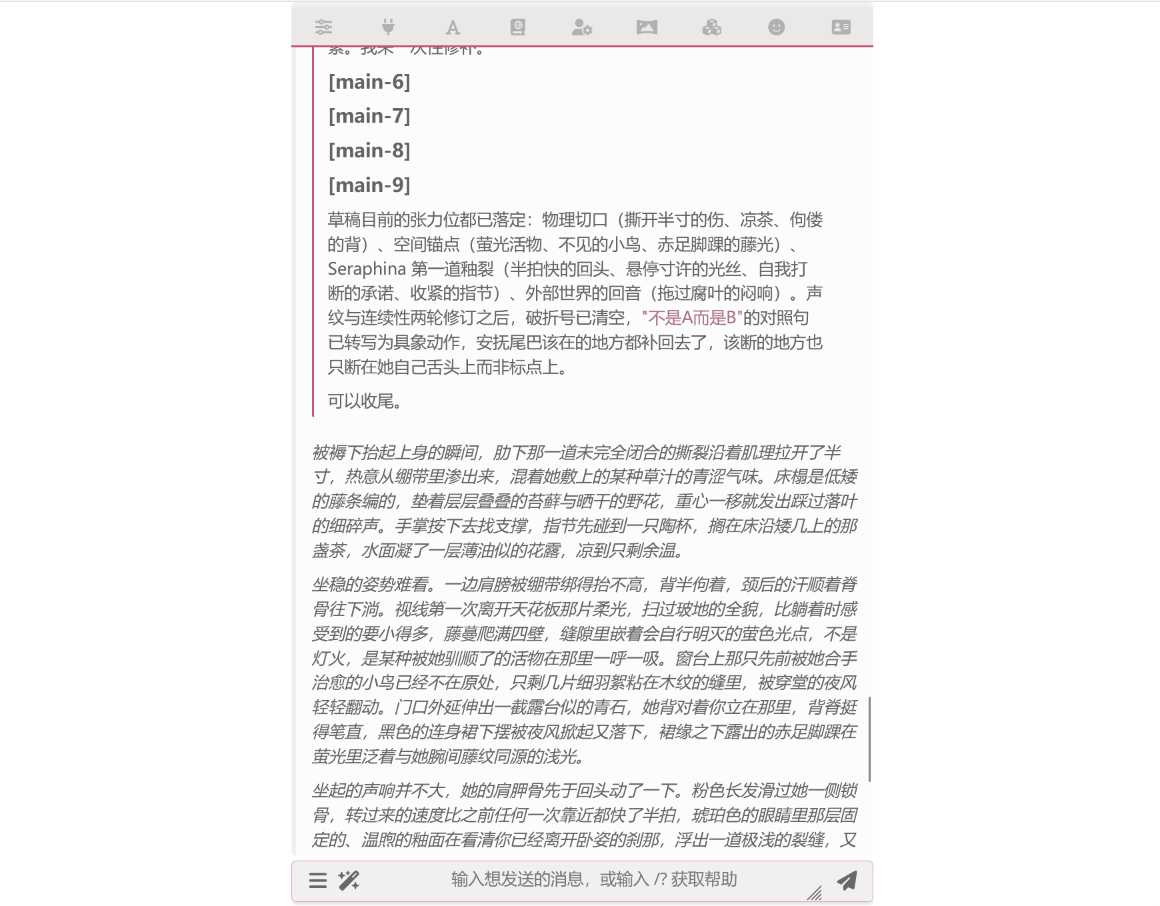
- Pre-draft scouts: each surfaces
Item / Source / Whyitems — characters, events, world info entries that matter to the current beat - Mid-stage brainstorming: a few structural sketches in parallel from different angles for the main agent to select from
- Post-draft critics: sub-agents critique the main agent's draft; the main agent decides which critiques to accept
- Housekeeping: writes the turn's new facts back to the memory graph
Need a closer look — agent model reasoning, tool call requests and responses? Click Show Run Panel beside the chat (or the bottom drawer on narrow screens) and expand any round.
Not satisfied with the result? That reasoning fold is the full agent execution log — use it to pinpoint where the problem occurred, then return to the AI Iteration Studio and describe in natural language what you want changed.
Where to go next
- Multi-Agent Orchestrator overview — triggering, capsule injection, the execution modes
- Director mode — the default sub-agents and their roles
- AI Iteration Studio — natural-language tuning of your config
- Memory Graph — node types, recall algorithms, schema customization
- Search Tools — engine differences + the standalone working modes
- Preset Assistant — the other session modes beyond "Adapt for orchestrator"