Chat Merge and Split
Combine several chats into one in the order you pick, with per-source range trimming. Or cut one chat into multiple new chats at the points you choose.
Merging chats
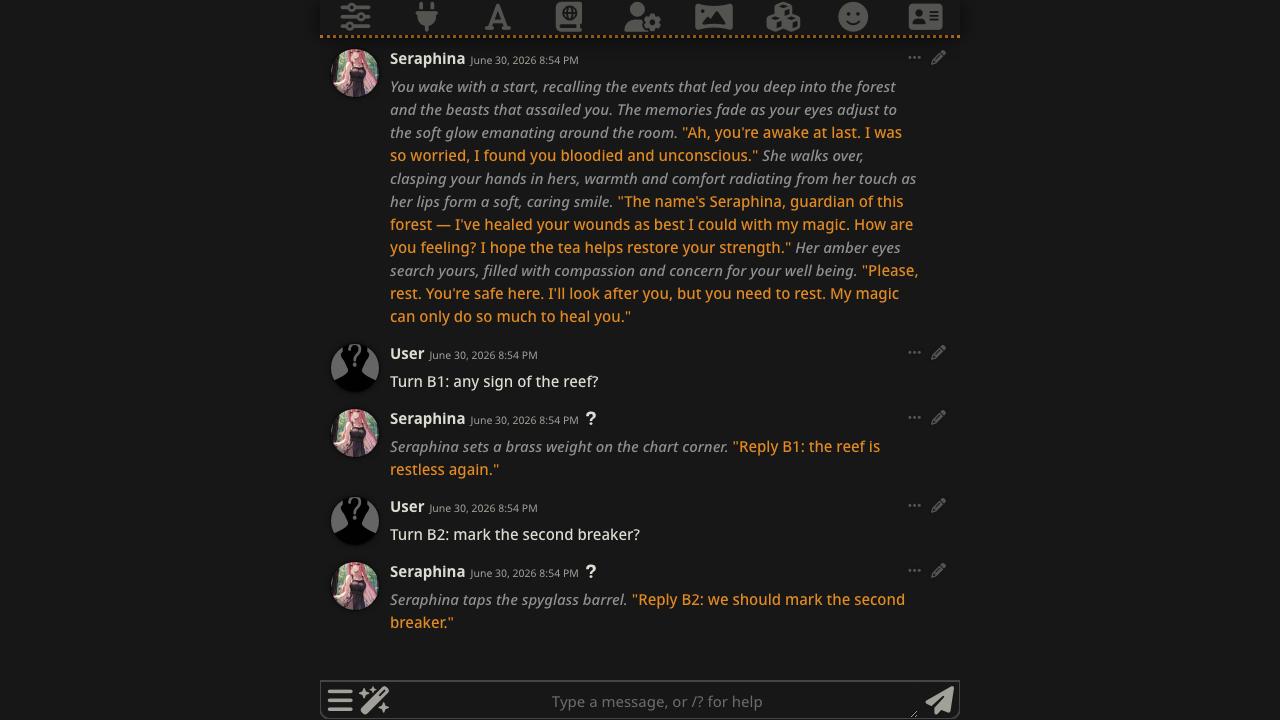
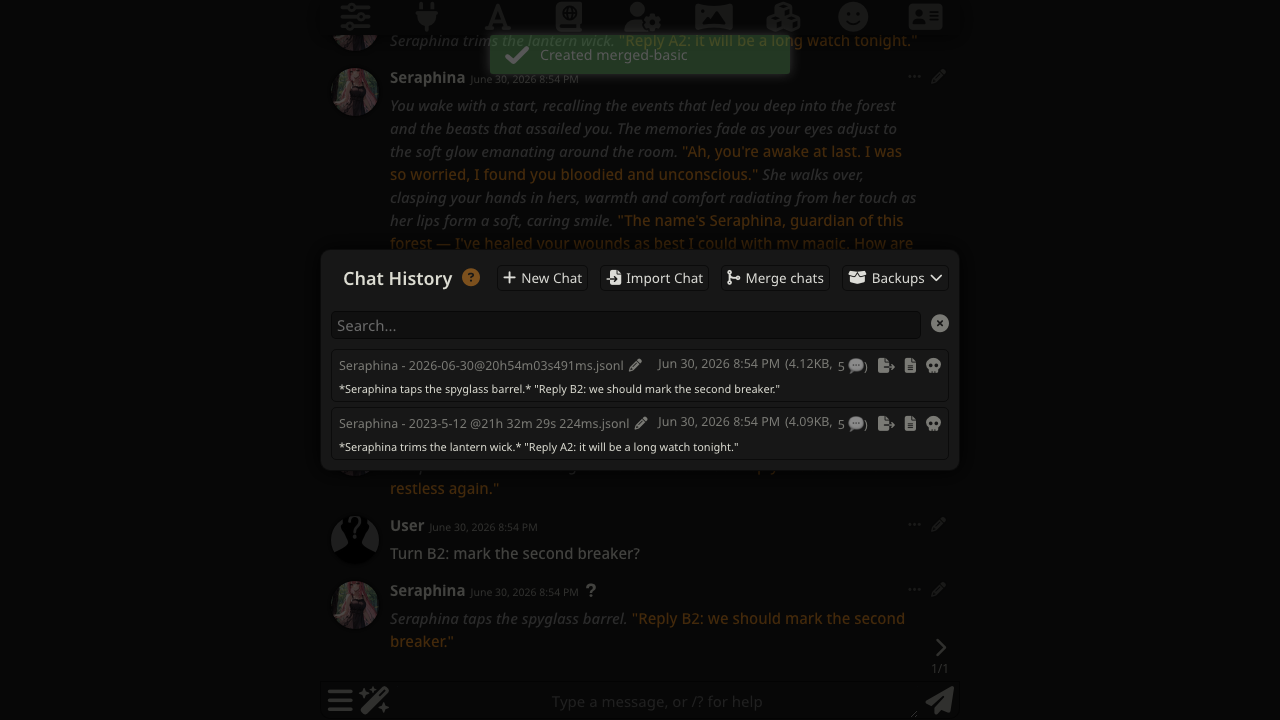
Open Past Chats (the chat-list popup for the current character or group), then click the merge icon in the popup header.
Click + Add chat to pick a source chat. Add as many as you want. The same chat can be added more than once.
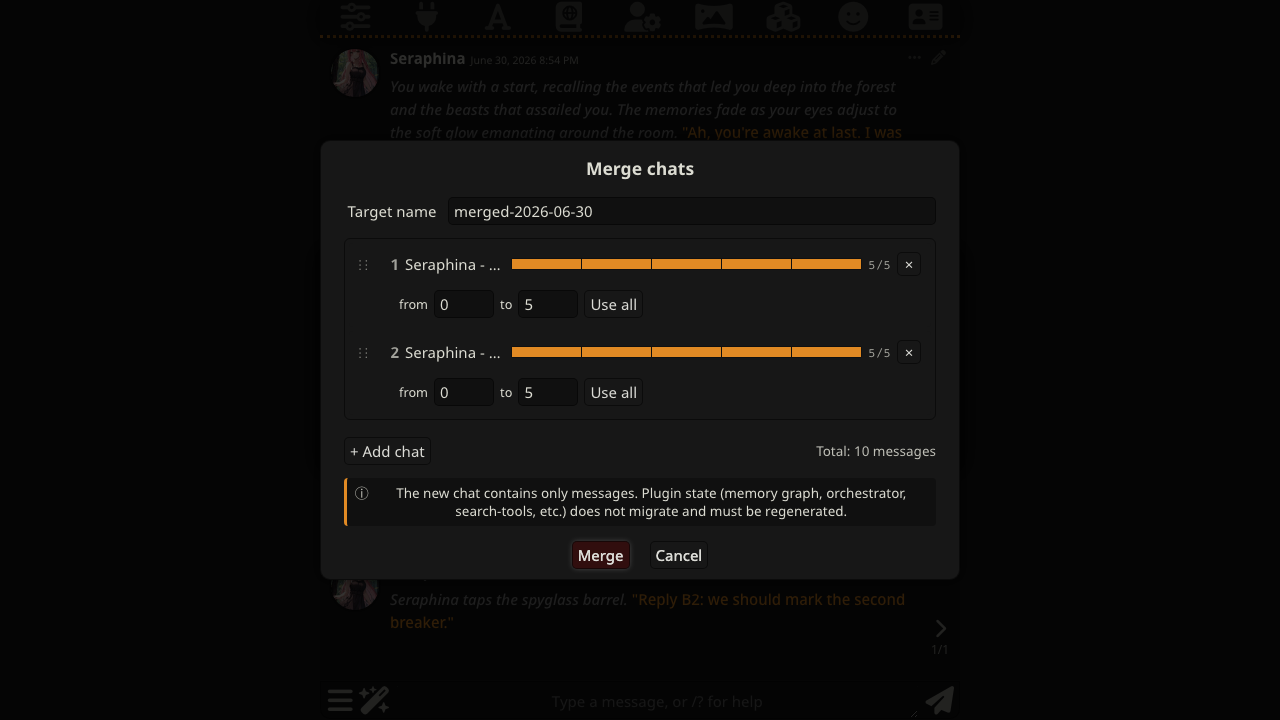
Drag the ⋮⋮ handle on the left of each row to reorder. Any row can move to any position.
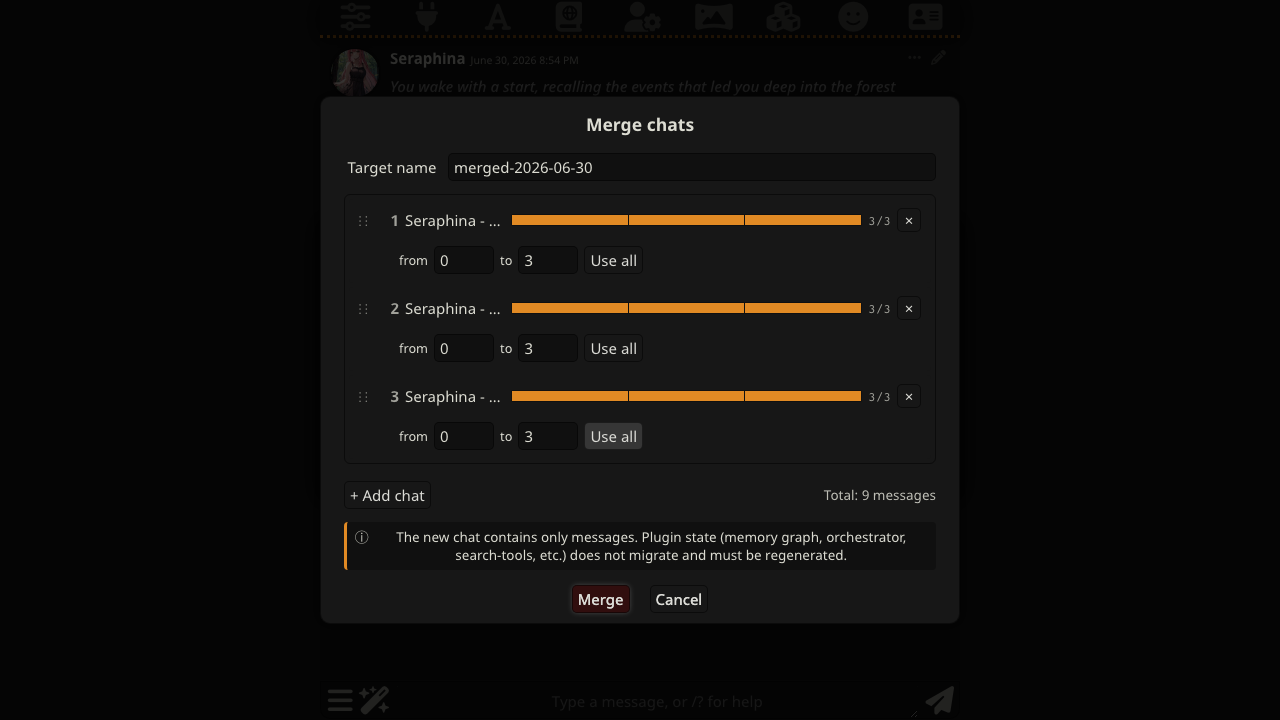
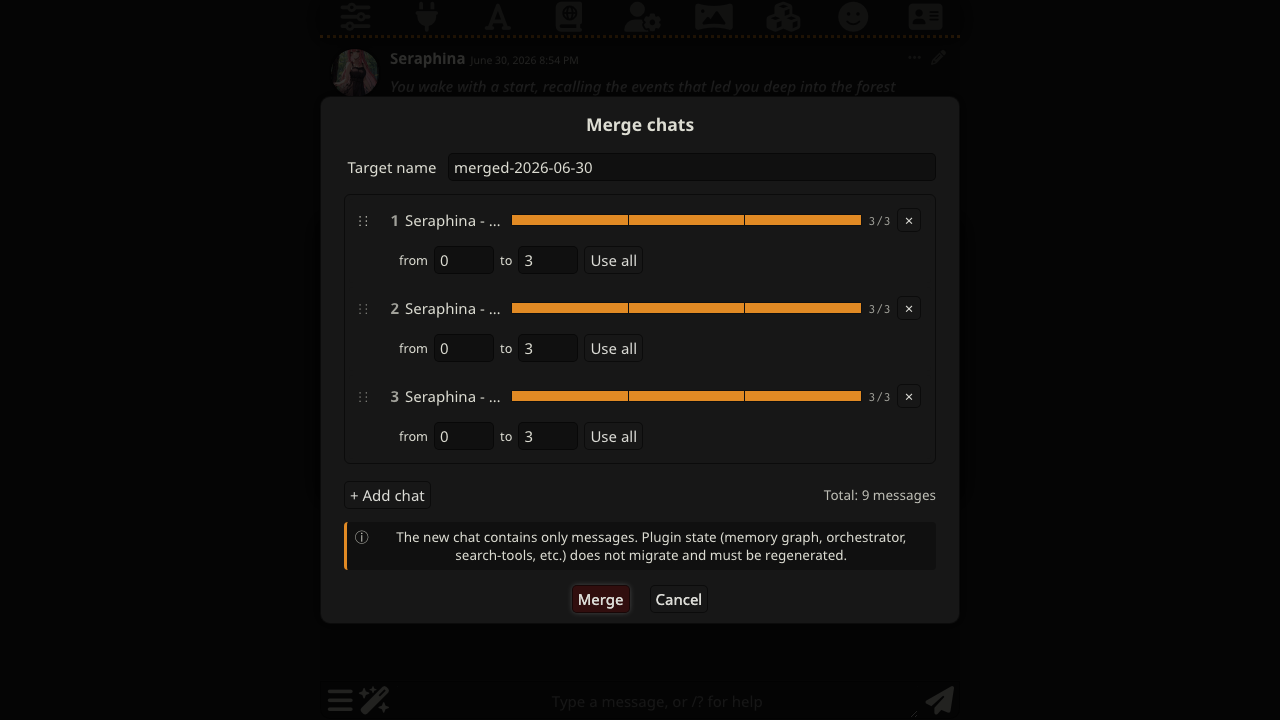
Set the
from/tonumbers to include only a slice of the source. The colored bar shows which messages are included. Click Use all to reset a row to the full chat.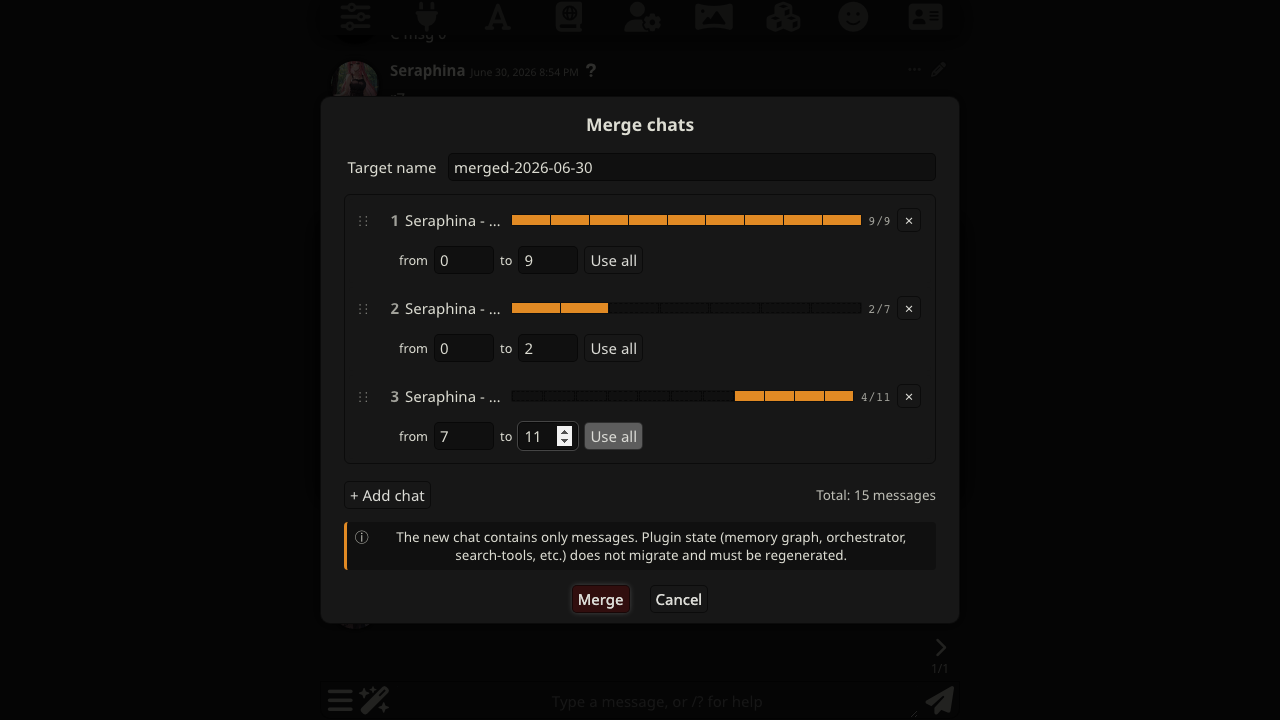
Type a target name at the top and click Merge. The new chat opens automatically.
Splitting a chat
Find the message where you want the chat to split. Click the ✂ Split Chat icon in that message's button bar.
The dialog opens with one split point pre-filled at that message's index. Click + Add point for more split points; type into the numeric inputs to fine-tune.
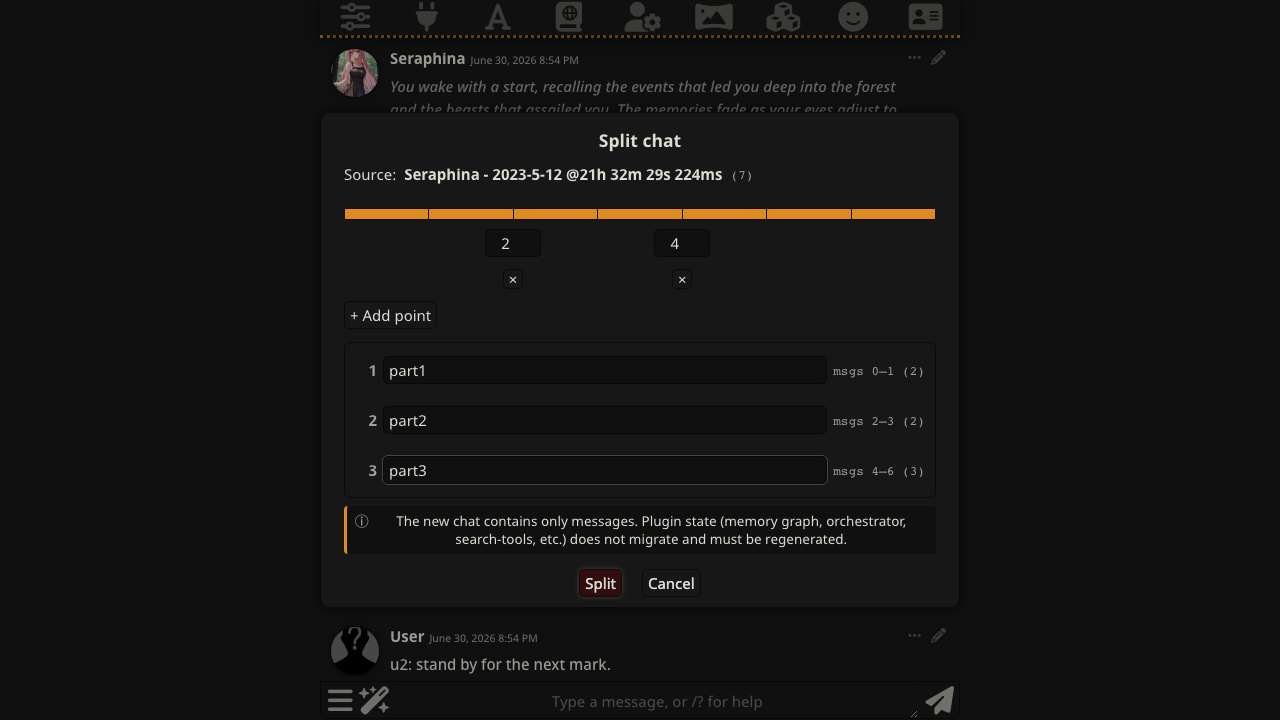
Rename each segment if you want, then click Split. The new chats are created in your chat list; the source chat is left untouched.
Group chats
Merge works the same way for group chats. Open Past Chats from a group and follow the merge flow above.
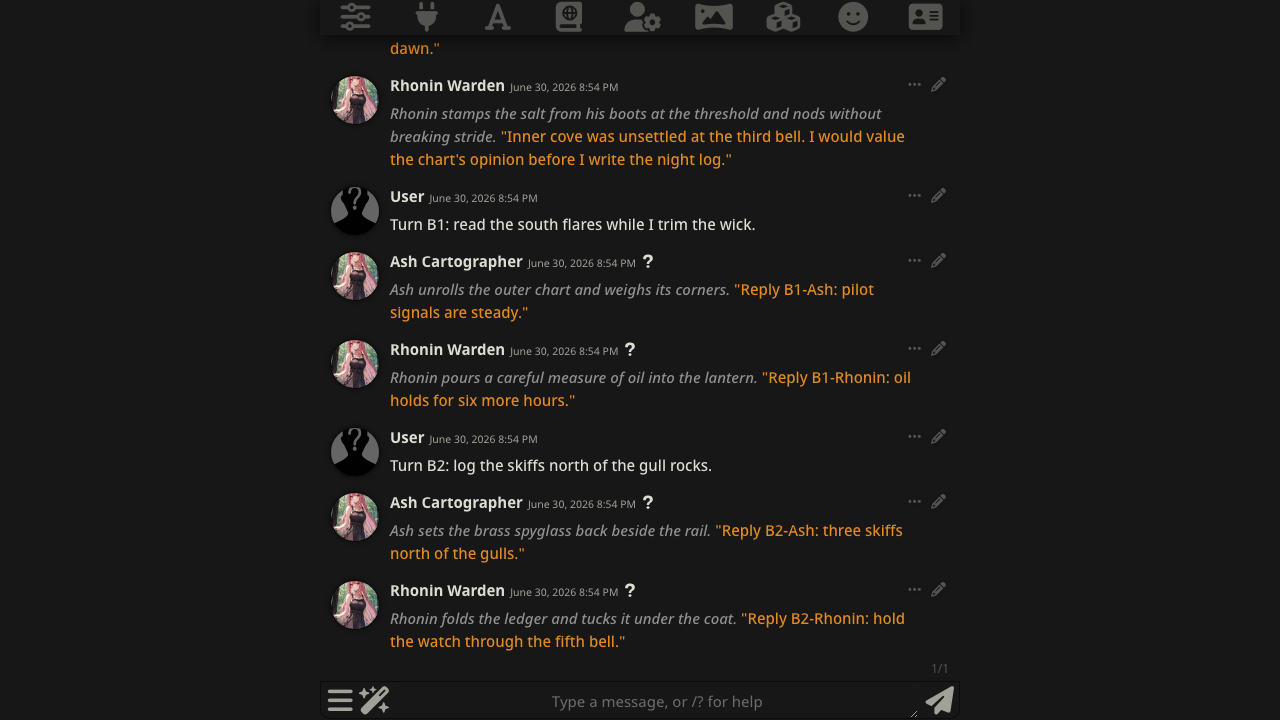
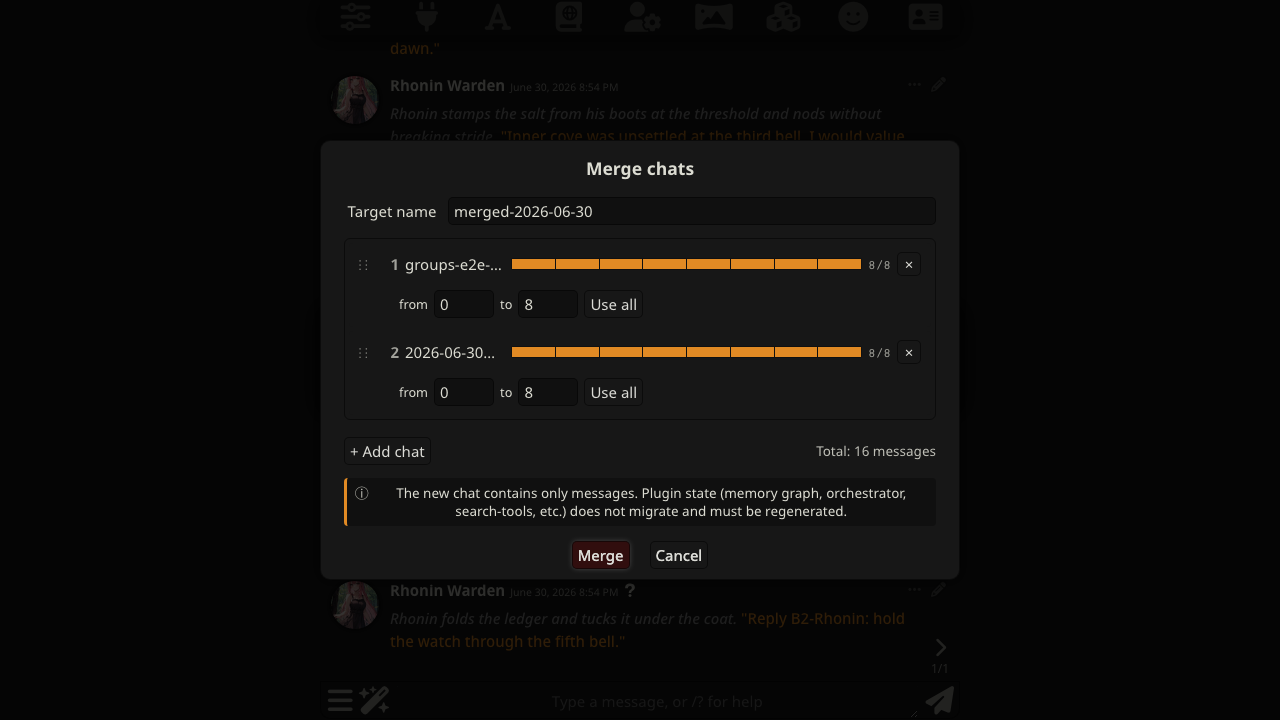
The merged group chat is registered with the group automatically, so it appears in the group's Past Chats list and opens like any other group chat.
Notes
- The new chats contain only messages. Plugin state — memory graph, orchestrator, search tools, and similar per-chat state — does not migrate. You will need to regenerate it in the new chat.
- Source chats are never modified or deleted.
- If the target name is already in use,
(2),(3), ... is appended automatically. - Works the same way in single-character chats and group chats. Same-source only: you cannot merge a character chat with a group chat.