LAN Sync
LAN Sync keeps two Luker instances on the same network in sync — desktop and phone, two computers, anything reachable over LAN. Only changed data crosses the wire; full re-uploads aren't needed.
When to use which
Luker has two ways to move data between devices:
- Migrate — one-time, full-data transfer. Best for first install on a new device.
- LAN Sync (this page) — repeated, two-way, incremental. Best when both devices are in regular use.
Quick start
Pair two devices
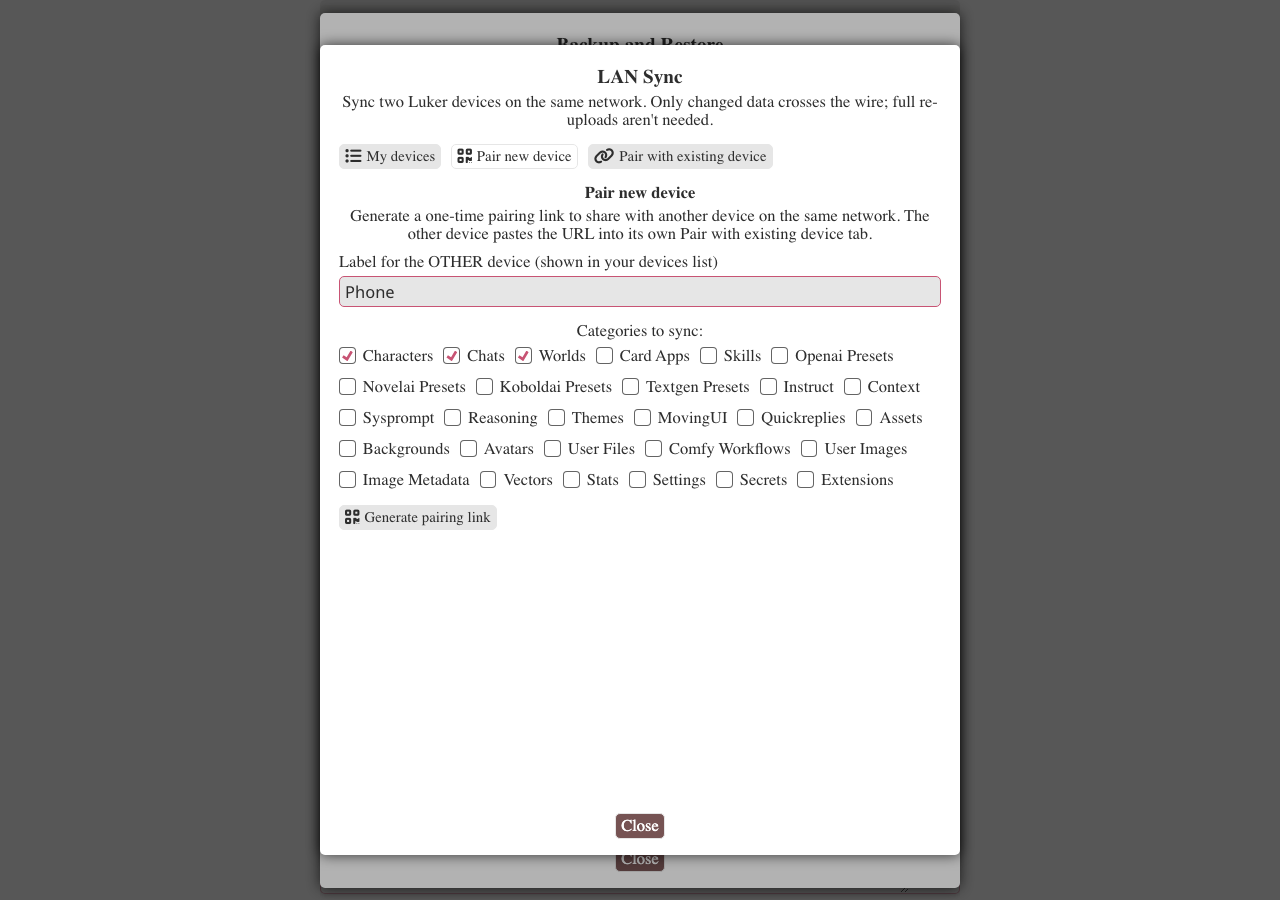
On the first device (call it A), open Settings → LAN Sync → Pair new device. Give the OTHER device a label, pick the categories to sync, and click Generate pairing link.
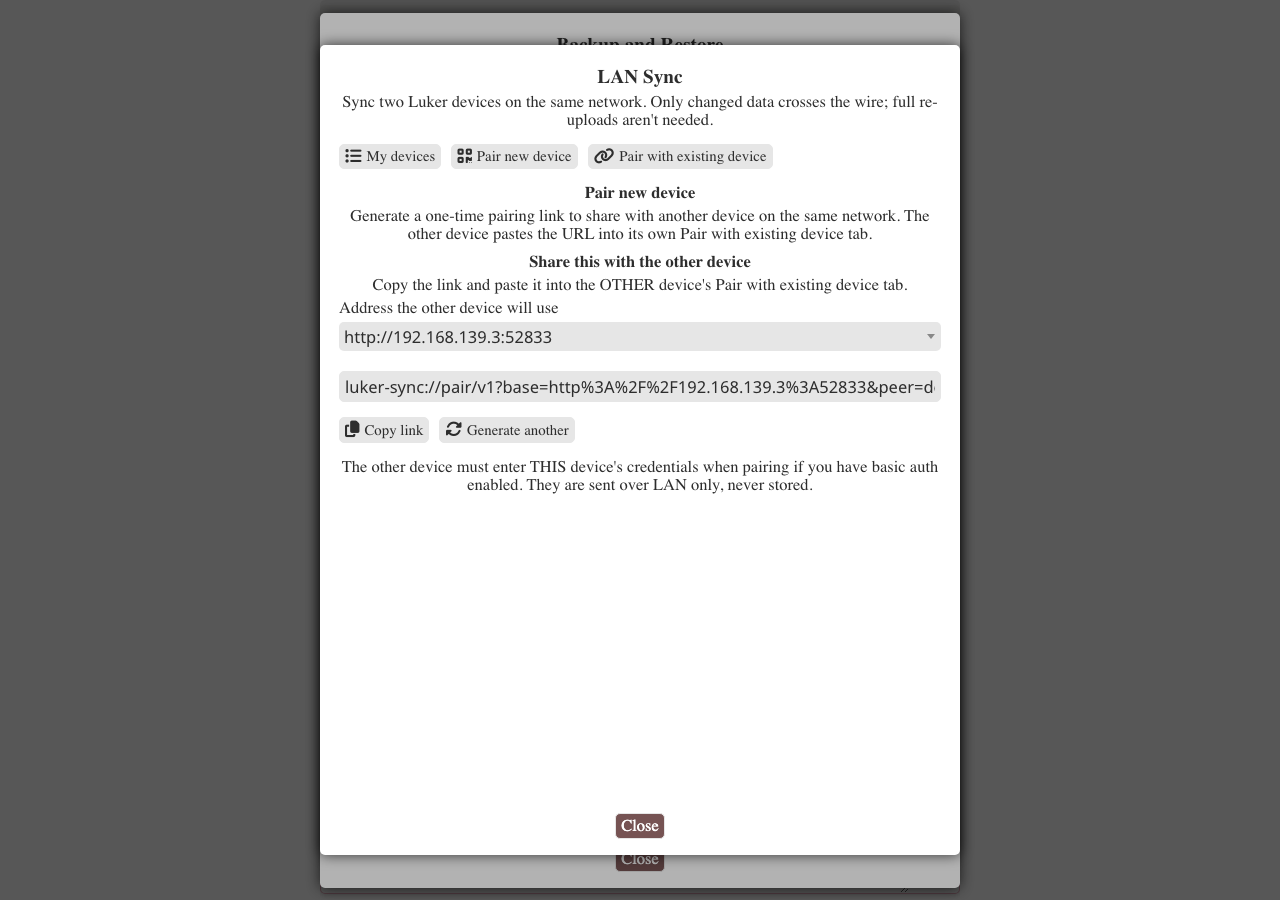
A shows the address the other device will use and a URL valid for 10 minutes. When this device is opened through localhost, the address defaults to a detected LAN address so the other device can reach it; a localhost address is labeled as this device only. Pick a different address if the device is on several networks.
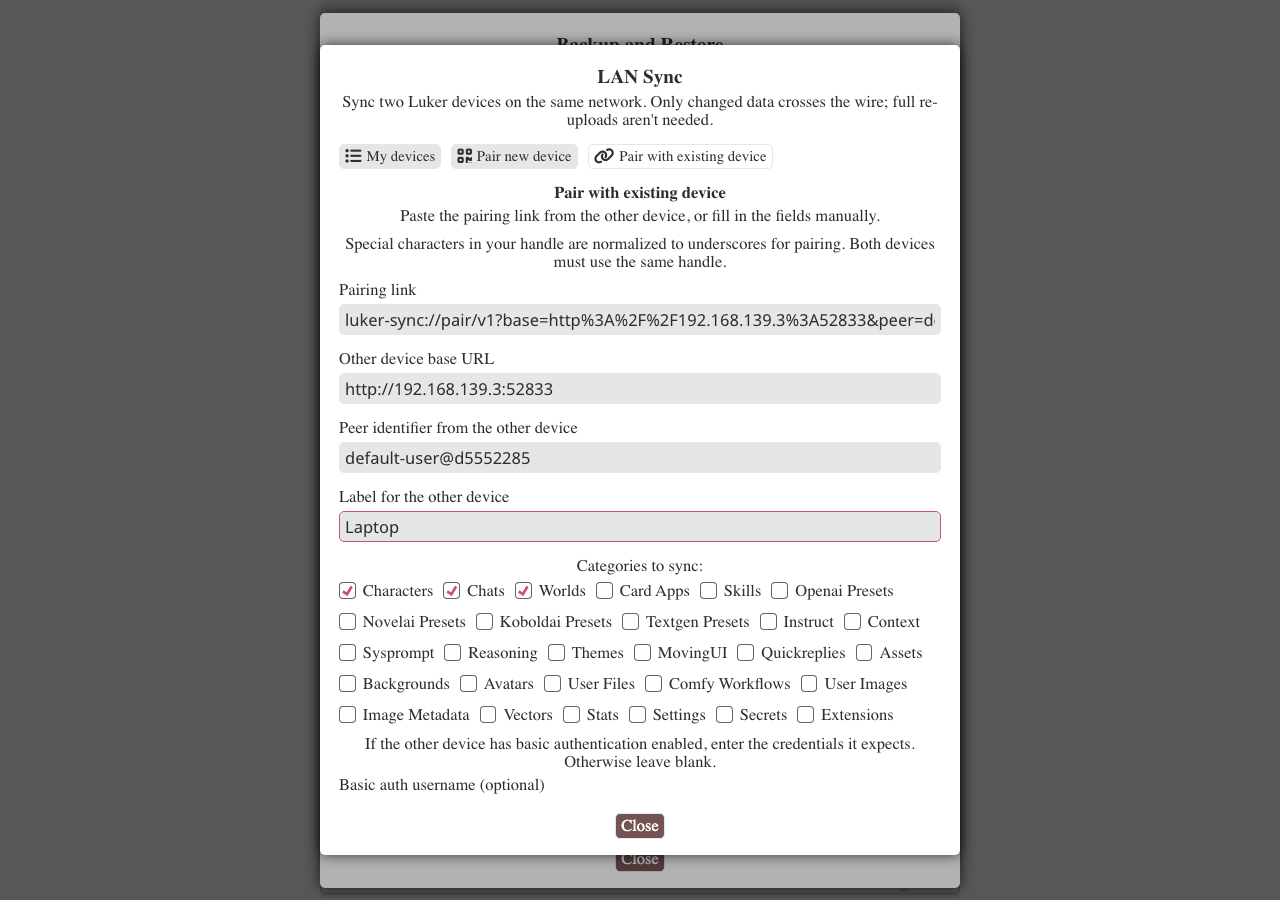
On the second device (B), open the same panel and choose Pair with existing device. Paste the URL and click Pair and sync. If A requires basic-auth, enter A's credentials in the optional fields.
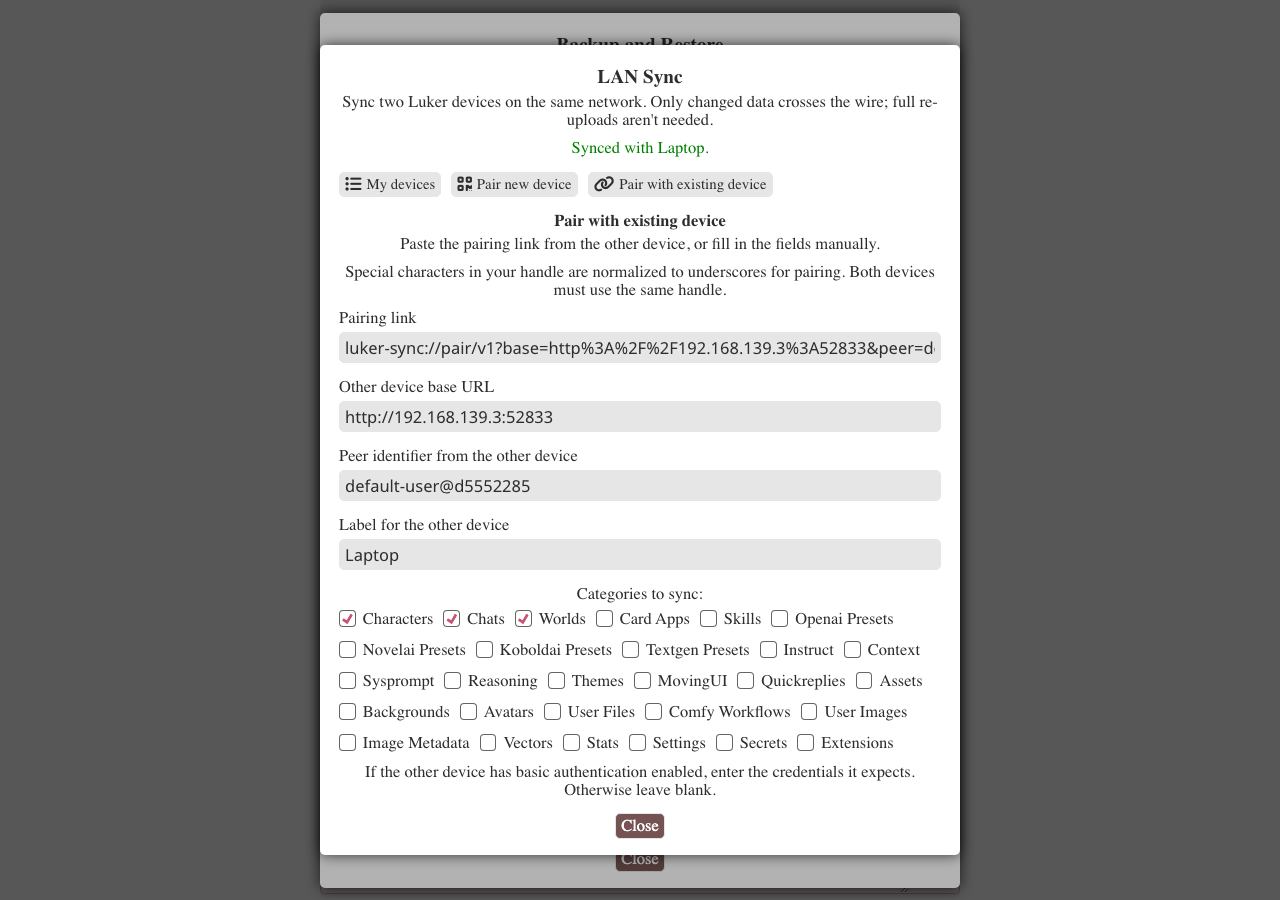
B downloads the data A chose to share and writes it locally. When the banner reads Synced with <peer>., the pair is done.
After pairing, A and B remember each other. Future syncs only take one click.
Sync after pairing
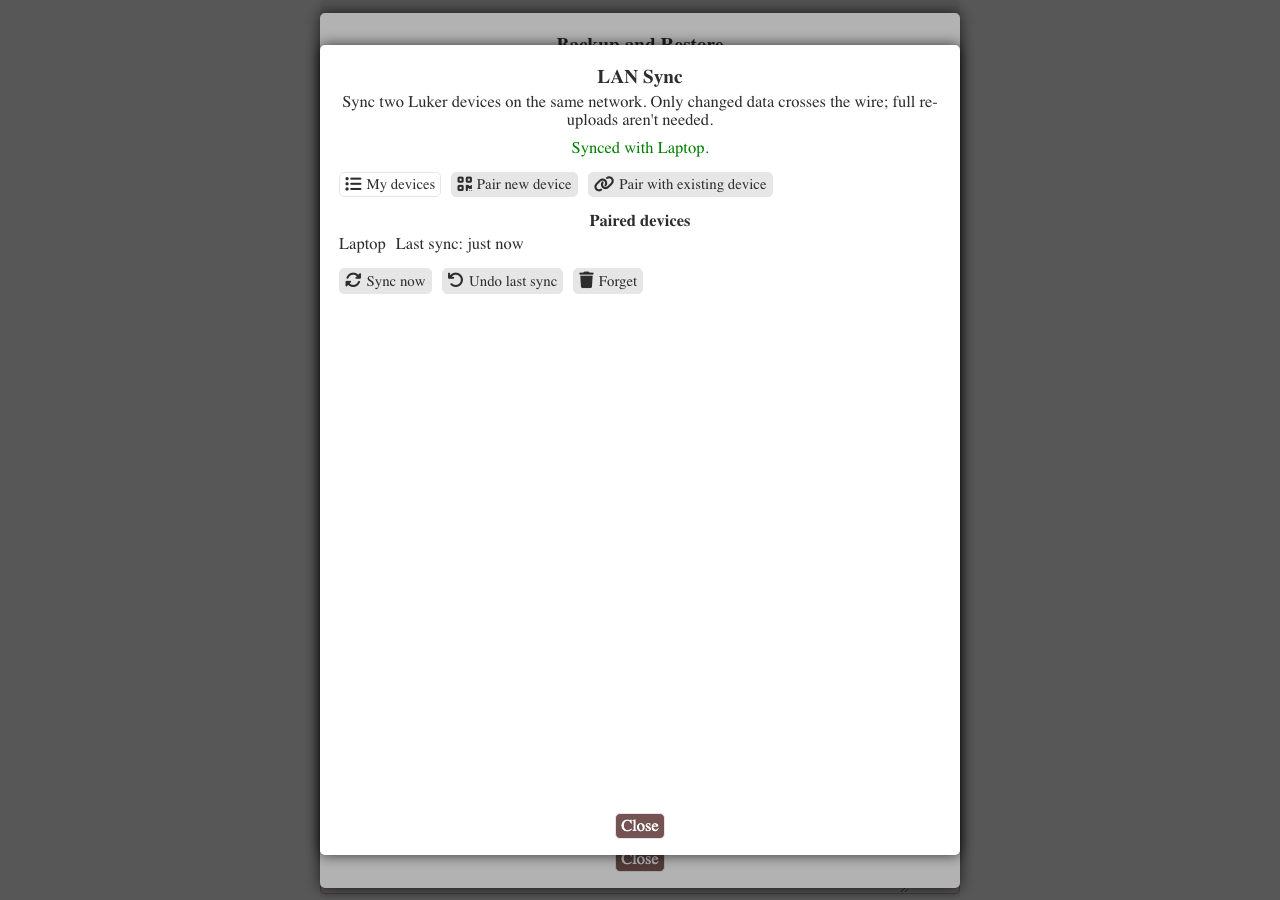
On either device, open the LAN Sync panel — paired devices appear under My devices with Sync now, Undo last sync, and Forget for each. Click Sync now; the two sides exchange changes and reconcile. The banner reports Sync complete. when done.
Resolving conflicts
If both devices edited the same file between syncs (for example: both renamed the same character), LAN Sync stops and shows a conflict panel. Each conflict has two cards: Local version and Remote version. Pick one card per conflict — there's no line-by-line merging.
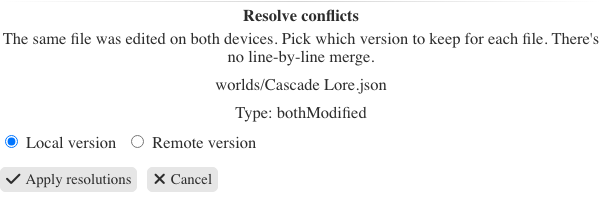
Conflicts are always per-file. Picking "Local" for one file and "Remote" for another in the same sync is fine.
Special case: settings
The settings.json file holds everything from "current chat" to "active preset" to UI layout, and it's a single big file. Even small changes on both devices show up as a conflict, and the only available resolution is whole-file pick-one-side — there's no per-field merging. The advice: make configuration changes on one device when possible, sync, and only then change the other.
What gets synced
By default, LAN Sync moves:
- Character cards, chats, group chats, world books
- CardApps and skills
- Presets (OpenAI / NovelAI / KoboldAI / TextGen), instruct / context / system prompt / reasoning templates
- Themes, moving UI layouts, quick replies
- Backgrounds, user avatars, uploaded files, user images
- ComfyUI workflows
- Assets (sound effects, background music, etc.)
- Image metadata (travels with the images it describes)
- Vector index (saves API budget — both sides reuse the same embeddings)
- Per-character statistics
settings.json(default on, with a warning — see "Special case" above)
Off by default — turn on per-device if you want them:
- Secrets (API keys) — off by default. Transmits keys in cleartext over LAN unless your transport is encrypted. Turn on only if you trust the network.
- Extensions — off by default. Third-party plugins may have device-specific in-progress changes; syncing them often makes things worse.
Never synced (each device keeps its own):
- Thumbnails (regenerated on first view)
- Per-device automatic chat backups
- Storage-migration archives
- Runtime logs, the active sync state itself, the server's cookie secret
Recovery
If a sync overwrites something you wanted back, open the LAN Sync panel and click Undo last sync. It rewinds to the state immediately before that sync. The other device is not affected (the undo is local).
For a stronger safety net before a risky sync, use Luker's full ZIP backup (Settings → Back up & Restore) and then sync.
Storage modes
LAN Sync works the same way on every storage backend. Chats, presets, world books, and the other categories that live in the database are projected back to per-record items for the sync, so conflicts always land at file granularity (one chat, one preset, one world book) regardless of where the data is stored.
- File storage (default): data already lives as files on disk and is reconciled directly.
- SQLite storage: rows in
luker-storage.sqliteare read out and written back per record. A chat edited on both devices surfaces as one conflict on that chat, not a conflict on the whole database. - MySQL / Postgres storage: same per-record flow as SQLite. Both devices must be on the same network so the LAN sync can reach each other; the database server itself does not need to be reachable from the peer.
Performance
A typical sync on a mature data set (a few thousand files, around 100 MB) finishes in well under a second after the initial pairing. Only objects new since the last sync cross the wire. The first pair-and-pull is the slowest operation; subsequent syncs are essentially instant.