Multi-Agent Orchestration
Have you ever had the AI just... not get it? You set up a careful scene — a tense standoff, a delicate political negotiation, a slow-burn romance — and the reply skips past your last beat, forgets a rule you established two scenes ago, breaks character to summarize, or rushes to a resolution you didn't want. This isn't because the model is dumb. It's because the model can only think about one thing at a time, and you've asked it to do too many in one shot: stay in character, recall context, respect world rules, plan a next beat, and write good prose.
The Orchestrator solves this by sending in a small team before the main reply. One agent extracts the important state from your recent chat. Another checks what world rules apply right now. A third drafts a plan for what this turn should accomplish. A fourth reviews their work. A final agent packages everything the team came up with into a single short briefing. By the time the main model writes its reply, it has been handed that briefing (and only that briefing), so it can spend its budget on the prose, not on bookkeeping.
The orchestrator ships with a working default Spec workflow — you don't have to design anything. Toggle it on and it just runs. When you want a different shape later, every execution mode has its own dedicated editor.
When does it run?
The Orchestrator triggers on five generation types: normal, continue, regenerate, swipe, and impersonate. It runs after World Info parsing and before the main reply. The Run Panel is kept in memory only — it's cleared when you switch chats.
5-Minute Walkthrough (using the default workflow)
You don't pick a mode first. You don't write a workflow first. The default Spec is already running. This section just gets it turned on so you can see what it actually does for you.
Step 0 — Prerequisites
- Your main chat already replies normally with a Chat Completion API.
- The current chat has at least 3 turns of dialogue (so there's something for the workflow to plan against).
Step 1 — Enable Orchestrator
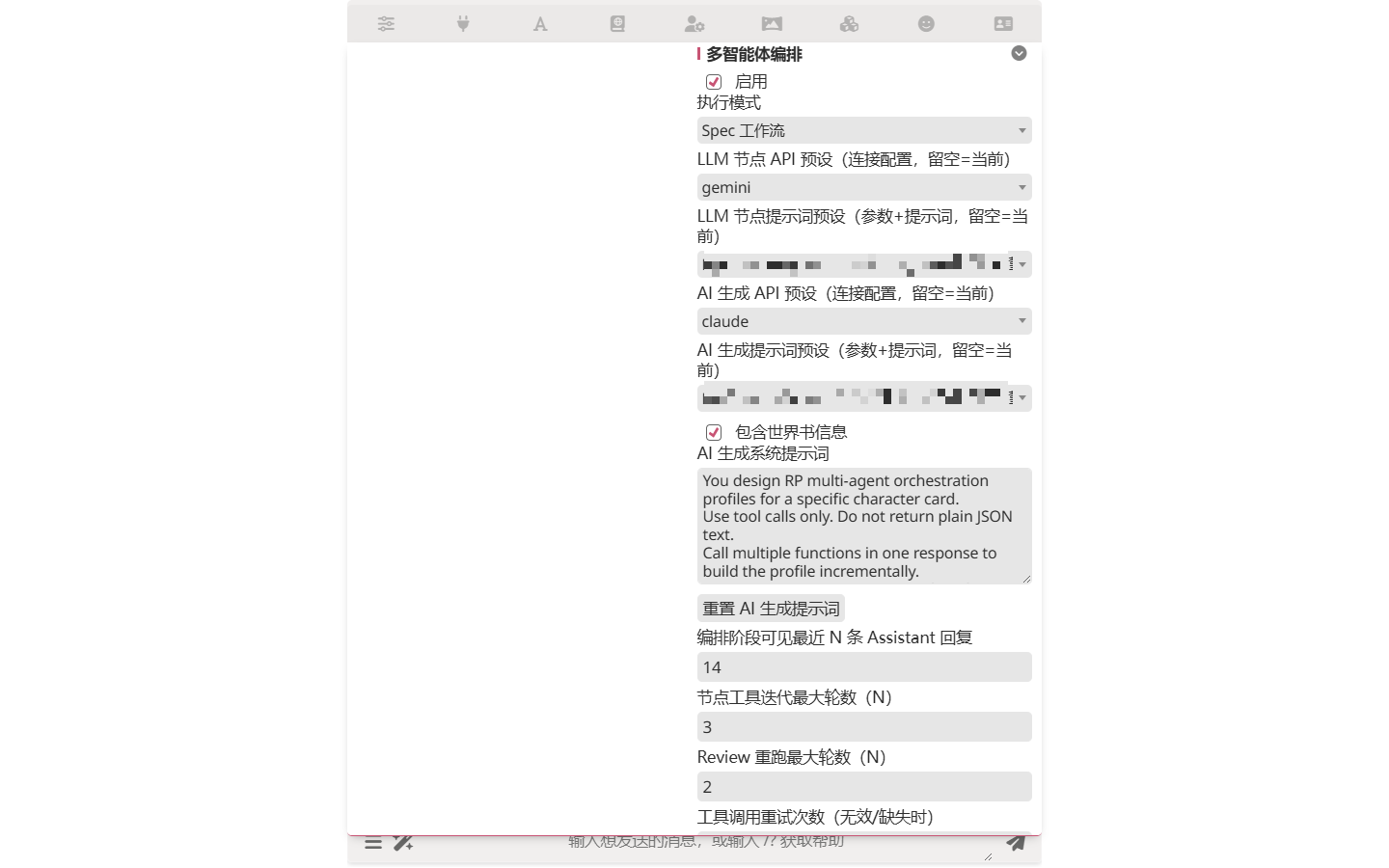
Open the Extensions drawer (top bar) and find the Multi-Agent Orchestration section. Toggle Enable on.
Step 2 — Pick a model for the agents
Scroll within the same panel to LLM Node API Preset and AI Generation API Preset. These tell the orchestrator agents which API and which Chat Completion preset to use.
Save money here
The orchestrator can call the LLM 5–10 times per turn (one per node). If your main chat uses an expensive model like Claude Opus, point the orchestrator at something cheaper — Haiku, Gemini Flash — and you'll cut 70%+ of the cost. If you need higher quality, route different nodes to different models (each node has its own API/preset override).
Step 3 — Just send a message
Send a message in the chat — no other settings to touch. Before the main model replies, the default Spec workflow runs in the background. The first time will be slower than usual (running 5–10 agents in sequence); after that it settles in.
Step 4 — See what it did for you
The moment a run starts, the Run Panel slides in beside the chat (or rises from the bottom on narrow screens). It's live: each round is a collapsible card; expand one to see what the model thought, which tools it called, and what they returned.
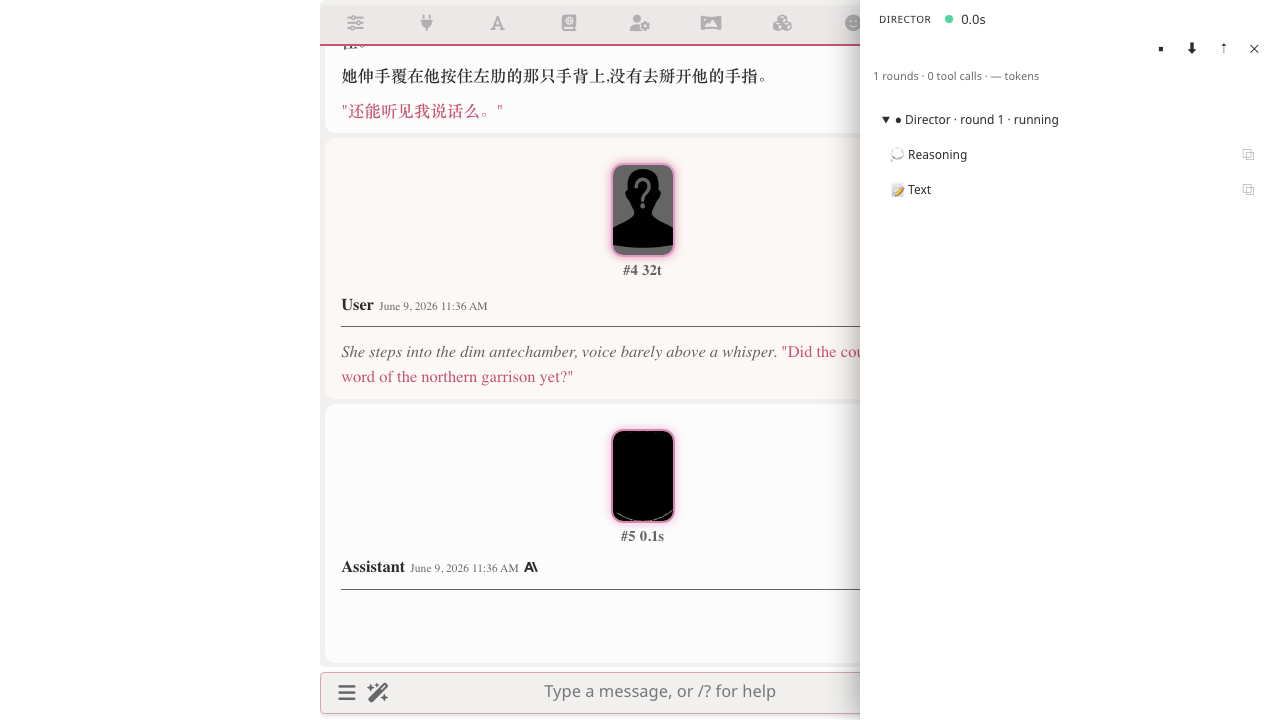
As the model streams output, the panel updates in place — no flicker, no chat reflow:
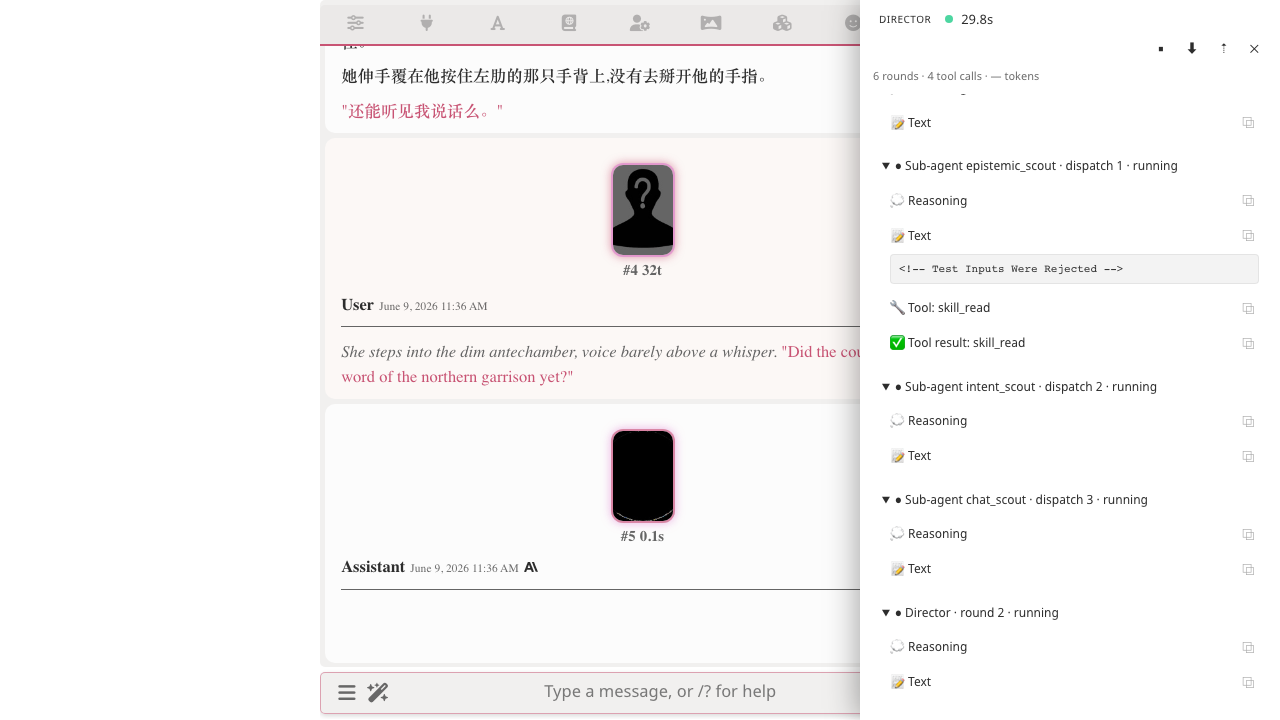
Expand any tool call to see its inputs and outputs:
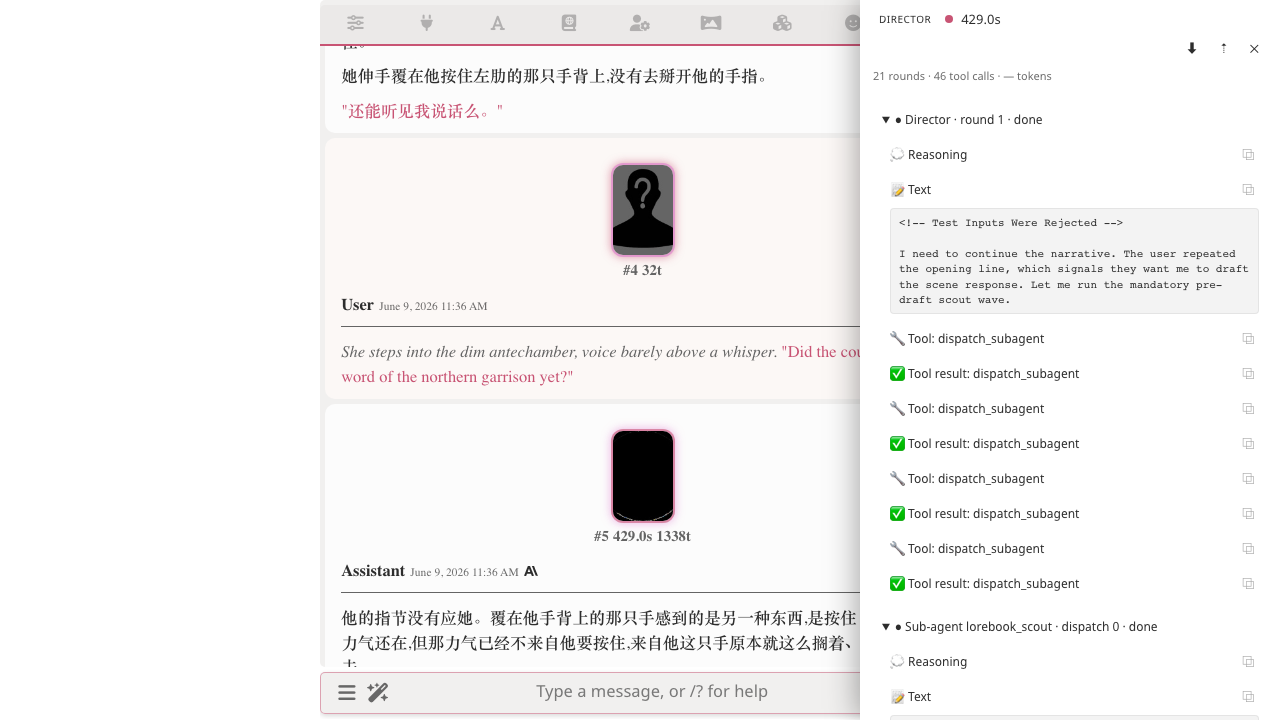
On narrow screens, the panel becomes a bottom drawer you can drag up or dismiss:
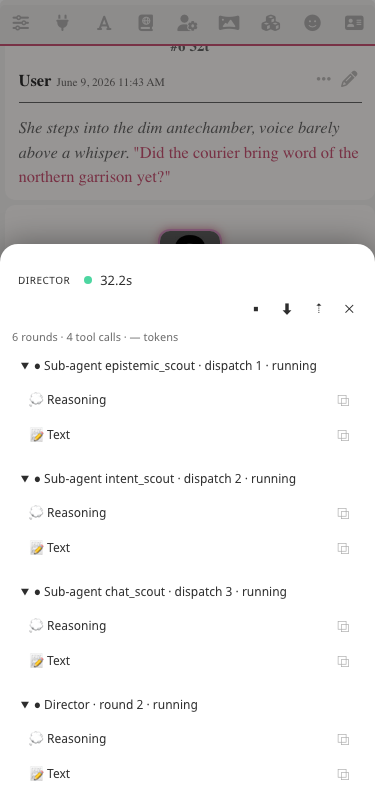
The panel is in-memory only. Switching chats or refreshing clears it; the chat thread keeps only the final reply, preserved verbatim. You can also:
- Stop the run mid-flight
- Copy the raw content of any section
- Export the full run as JSON (handy for bug reports)
- Collapse all to fold every card at once
This is the physical meaning of "the AI thinks before replying." If the reply is bad, open the panel and find exactly where the bad signal came in.
You're using the orchestrator now. From here, three branches based on what you want:
- The default Spec isn't enough — customize it (yourself or with AI help) → Spec mode
- Need the flow to change based on situation, can't pre-write a DAG → Agenda mode
- Want a single agent that calls tools (memory, lorebook…) until it says "I'm done" → Loop mode
Whichever mode you pick, customization starts here
AI Iteration Studio is the orchestrator's primary customization tool — describe what you want in one sentence, the AI returns a proposal, you approve change-by-change. All three modes share it, and it beats hand-editing in 99% of cases.
Pick your execution mode
| Mode | What it is | When to use | Skills | Detailed docs |
|---|---|---|---|---|
| Spec (default) | A fixed Stage → Node DAG | Default. You want a predictable pipeline | Catalog injected per node; per-node skills.visible overrides | Spec mode |
| Single Agent | A Spec with exactly one node | Cheap and fast. No multi-agent coordination needed | Catalog injected on the single node | Single Agent mode |
| Agenda | A Planner agent dispatches other agents via tool calls | Flow needs to decide who runs based on what's happening, like an agent loop | Catalog injected on planner + each dispatched worker | Agenda mode |
| Loop | One agent calls tools in a single conversation until finalize | Strikes the speed/quality balance; exploratory research, dynamic decisions | Catalog injected on the loop agent | Loop mode |
| Director | A main agent + sub-agent team writes the message body directly | Takeover mode for high-quality long-form RP; ships with 24 bundled skills pre-bound | Catalog injected on main agent + each sub-agent dispatch | Director mode |
Switch modes from the Execution mode dropdown in the extension drawer. Spec and Agenda can convert into each other from the editor (best-effort); Loop has a different shape, no analogous conversion.
Want to customize? Start with the Studio
After switching to any mode, the AI Iteration Studio is the first stop. Spec and Agenda surface diffs you approve; Loop patches the profile directly. Same panel, same workflow.
Skills column
All five modes use the same skills policy shape (skills.visible / skills.deny at the mode level, optional +-inheritance overrides per agent). For the full model, see Orchestrator integration. Director is the only mode that ships with pre-bound default skills out of the box; other modes start with visible: ["*"] (every installed skill is visible).
Common configuration
These settings are shared across modes.
Result injection
The orchestrator's final output (the "capsule") is injected into the prompt sent to the main model.
| Setting | Default | Description |
|---|---|---|
| Injection Position | atDepth | Where in the prompt to insert the capsule |
| Injection Depth | 0 | Depth at the chosen position |
| Injection Role | SYSTEM | One of SYSTEM / USER / ASSISTANT |
| Custom Instruction Prefix | (a default sentence) | Prepended to the capsule text |
The capsule is bound to the user-message floor that triggered orchestration. When you swipe on the same floor, the orchestrator reuses the existing capsule instead of re-running. When you change the configuration, the system reapplies the latest result.
Character card binding
Orchestration configurations can be bound to a character card. When bound:
- The configuration exports with the card. Anyone importing the card gets the recommended workflow automatically.
- Card creators can ship a workflow that's tuned for their character.
- Switching to the card auto-applies its workflow.
- The card can specify its own execution mode (all four modes are supported).
- Card override can be enabled/disabled independently of the global config.
- "Clear character override" reverts to the global configuration.
- You can layer personal tweaks on top of a card-bound configuration.
All four modes now support card overrides.
Import / Export
Spec and Agenda configurations export as JSON.
| Format | Identifier | For |
|---|---|---|
| V1 | luker_orchestrator_profile_v1 | Spec mode |
| V2 | luker_orchestrator_profile_v2 | Agenda mode |
Filenames look like luker-orchestrator-[agenda-][global|character-{name}].json. The exporter handles both global and per-card scope.
On import, the file's mode (Spec/Agenda) must match your current execution mode. You choose whether to apply to the global config or to a specific card.
Loop import/export
Loop mode doesn't have file-level Profile import/export buttons yet. Use the AI Iteration Studio to reuse loop workflows.
Common configuration reference
The most common settings:
| Setting | Default |
|---|---|
| Execution Mode | spec |
| Injection Position | atDepth |
| Injection Depth | 0 |
| Injection Role | SYSTEM |
Full configuration reference
| Setting | Description |
|---|---|
| Execution Mode | Spec / Single Agent / Agenda / Loop |
| Injection Position | Where the capsule is inserted in the main prompt |
| Injection Depth | Depth of insertion |
| Injection Role | SYSTEM / USER / ASSISTANT |
| Custom Instruction Prefix | Prefix prepended to the capsule |
| Requests Per Minute Limit | Throttle for parallel nodes |
| Tool Call Retries | Retries for failed tool calls |
| Global API Preset | Default API connection preset |
| Global Chat Completion Preset | Default Chat Completion preset |
| Include World Info | Whether nodes see World Info |
<thought> Tag Stripping | Strip thinking tags from agent output |
| Message Folding Threshold | 1200 chars / 18 lines |
Mode-specific parameters (per-node, review, planner, loop tool toggles…) live in the per-mode pages.
Events and Plugin Integration
For other extensions and scripts
The Orchestrator dispatches a frontend event after each run, so other code can consume orchestration results without scraping the UI.
- Event:
luker.orchestrator.result - Channel:
getContext().eventSource - When: on
completed,reused,cancelled,failed
Payload:
| Field | Type | Description |
|---|---|---|
module | string | Always orchestrator |
event | string | Always luker.orchestrator.result |
status | string | completed / reused / cancelled / failed |
generationType | string | The triggering generation type |
chatKey | string | Current chat key |
at | string | ISO timestamp |
anchorPlayableFloor | number | Bound user turn floor (0 if unavailable) |
anchorHash | string | Anchor hash for validation |
capsuleText | string | Final injected guidance text |
stageOutputs | array | Compact stage outputs (completed / reused) |
reviewRerunCount | number | Review rerun count |
reason | string | Machine-readable reason for cancellation/failure |
note | string | Human-readable note |
error | string | Error message when failed |
Subscriber example:
const context = getContext();
context.eventSource.on('luker.orchestrator.result', (evt) => {
    if (evt.status === 'completed' || evt.status === 'reused') {
        console.log('Orchestrator capsule:', evt.capsuleText);
    }
});
Related
- AI Iteration Studio — the orchestrator's primary customization tool, shared across modes
- Spec mode — default DAG workflow
- Single Agent mode — degenerate Spec, single node
- Agenda mode — Planner-driven dynamic dispatch
- Loop mode — single-agent tool loop
- Director mode — multi-agent takeover; ships with 24 bundled skills
- Skills overview — the knowledge-pack substrate shared across all modes
- Notes — author-side plot threads — agent-as-author thread tracker, scoped to the current chat
- Function Call Runtime — Agenda and Loop both rely on it
- Character Card Editor — shares the diff engine with Iteration Studio
- Card-Bound Presets and Personas — how the orchestration config rides along with character cards