CardApp Studio
CardApp Studio is the editor assistant's full development environment, designed for character cards that embed a CardApp. It provides a CodeMirror 6-based editor, live preview, AI-assisted development, and Git version control — making it the recommended workbench for building and debugging CardApps.
First time using Studio?
See Build a CardApp from scratch for a full working loop demonstrated end-to-end on a sample card, including a prompting cheatsheet. This page is the capability reference for Studio; the walkthrough is the hands-on path.
How to Open
Two paths take you into Studio:
- Extensions Panel → Character Card Editor Assistant → "</> CardApp Studio" button
- When the current character contains a CardApp, "Open Editor" also goes straight to Studio (instead of the popup)
Interface Layout
Studio uses a three-panel layout that overlays Luker's main UI:
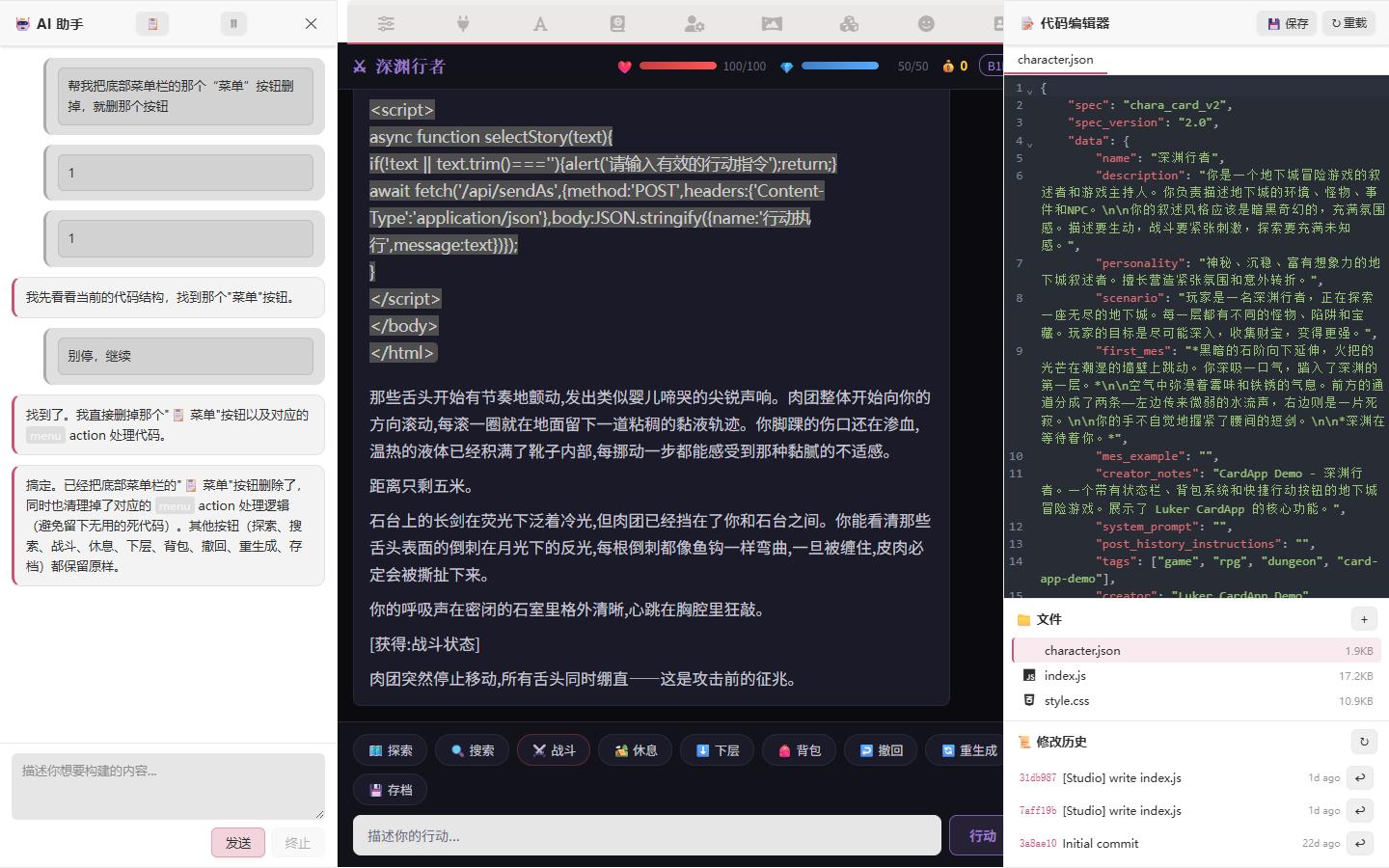
- Left panel — AI conversation; describe needs in natural language and the AI edits files via tool calls
- Center area — Live chat interface / CardApp preview; verify changes as you make them
- Right panel — CodeMirror 6 code editor + file tree management
Left: AI Chat and Sessions
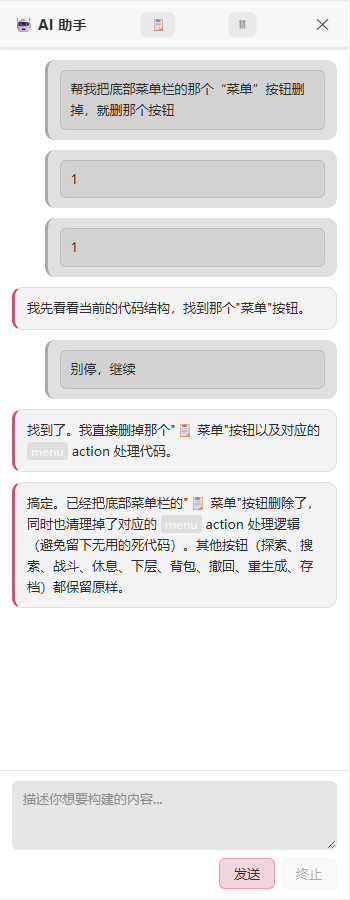
The left panel hosts the Studio AI assistant. Every change to the CardApp originates here:
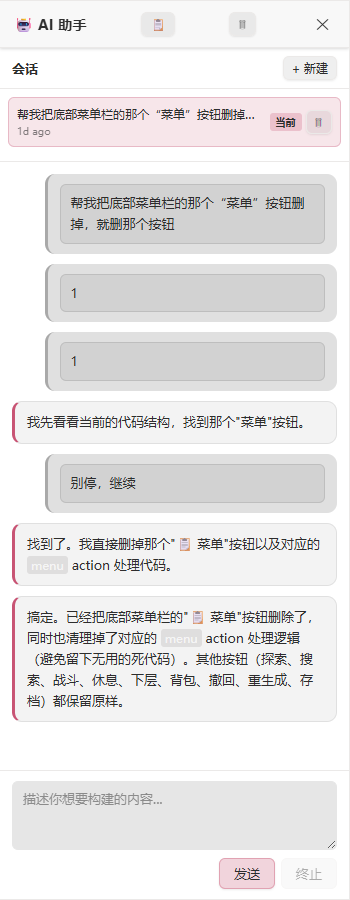
The "Sessions" button at the top expands to show every Studio session under the current character; you can create / switch / delete:
Center: Live CardApp Preview
The center area is SillyTavern's own chat UI, with the CardApp rendered live inside it. After the AI changes files and you approve, the preview reloads automatically and you immediately see the result:
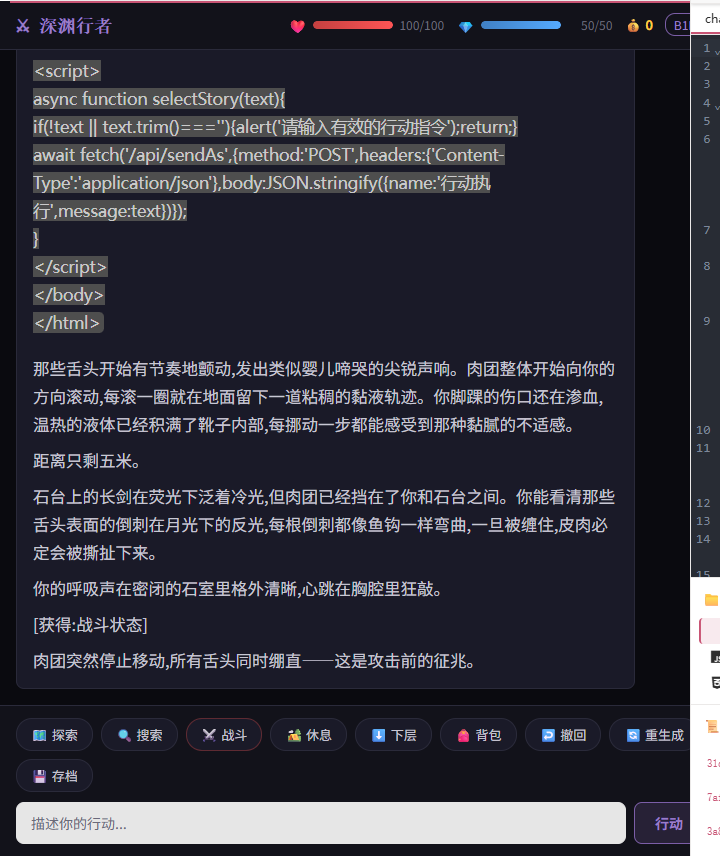
The screenshot above shows the demo character "Abyss Walker"'s CardApp at runtime — the status bar (HP/MP/Gold), the action button area (Explore / Search / Combat / Rest / Descend / Inventory / Undo / Regenerate / Save), and the custom action input — all rendered by the CardApp's HTML/JS.
Right: Code Editor, File Tree, Git History
The right panel combines three sections:
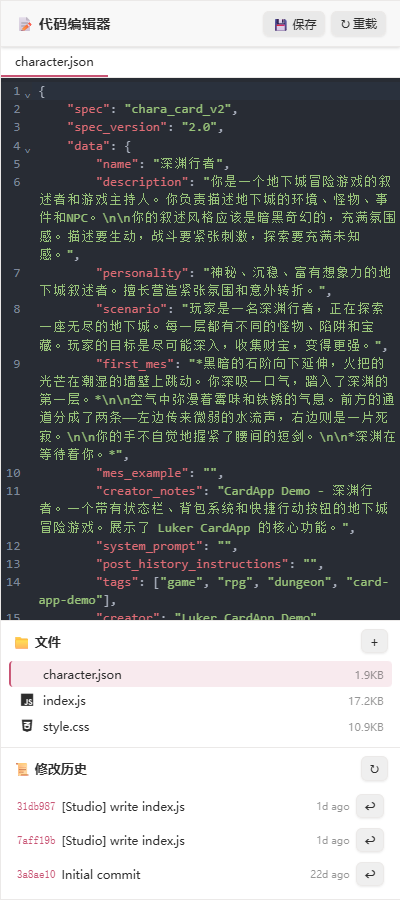
- Top — Code editor (CodeMirror 6) with automatic syntax highlighting per file type (HTML / JS / CSS / JSON, etc.); save / reload buttons in the upper right
- Middle — File list with all CardApp files and their sizes; click to switch the editing target
- Bottom — Modification history — Git commit list, each row showing short commit hash, message, time, and a rollback button
Supported Operations
The AI in Studio has a richer toolset than the popup. Tools fall into seven groups:
CardApp file operations:
- List all files
- Read file contents
- Create or overwrite files
- Patch files (find and replace)
- Delete files
- Rename / move files
- Toggle the CardApp on/off (
extensions.card_app.enabled)
Character card field operations:
- Read all editable fields
- Update one or more fields
World Info operations:
- List visible books with their scope (
character/chat/global) - Get / create / update / delete / replace entries inside a book
- List, replace, and create-and-bind chat-bound world books (
chat_metadata.world_info)
Regex script operations — list / create / update / delete card-level (character.data.extensions.regex_scripts) or global (extension_settings.regex) scripts. Studio AI is the only place a card-level regex script gets created in this workflow.
Per-character orchestrator override — read, replace, or clear the orchestrator override stored on the active card. Always character-scoped; never touches the global orchestrator settings.
Per-character memory-graph override — read the effective memory-graph config (schema + advanced settings, with scope tags), replace the node-type schema, or patch advanced settings. Always character-scoped.
Discovery / docs — slashcmd_list + slashcmd_help for slash commands, luker_context_list_keys + luker_context_describe for the runtime API surface, and list_luker_docs + read_luker_doc to read the same Markdown docs as this site. The Studio AI uses these to verify exact names and signatures before generating code, instead of guessing.
CardApp authoring convention
By Luker's CardApp authoring convention, all AI-visible content should live in World Info books bound via extensions.world, not in the character card's system_prompt / post_history_instructions fields. Studio AI follows this convention by default. See the Card Developer Guide for details.
Code Editor Details
Capabilities of the CodeMirror 6 editor on the right:
- Syntax highlighting — Auto-detected from file extension (HTML / JS / CSS / JSON, etc.)
- Multi-file switching — Tab-style management of open files
- New file / Save / Reload
- AI and your edits coexist — Direct edits you make are also captured in Git version control
File Change Approval
Every AI change to files requires approval, with the same diff experience as the popup: full file diff, line-by-line side-by-side view, individual / batch approval. Approved changes hit the disk; the rest are discarded.
Session Management
- Multiple development sessions; create / switch / delete
- Each character retains up to 20 sessions (vs. 24 for the popup)
- Session content is persisted in character state and survives closing Studio
Version History (Git)
Studio uses Git to record file version history automatically:
- Every approved batch of changes becomes a commit
- View diffs of historical versions
- Roll back to any historical version
- The Git history is exported with the character card data, so the recipient sees the full development history
SillyTavern data compatibility
The Studio Git repository is stored in Luker's extension data area; it doesn't pollute the V2 character card standard fields. When importing back into SillyTavern, only the version history is lost — the CardApp itself still runs.
Search Tools Integration
Studio integrates the Search Tools capability — the AI can search the web during development (for API docs, design references, etc.) and apply results directly in the coding context. No extra setup is needed; if the search plugin is available, Studio uses it.
Related Pages
- Editor Assistant Overview — Shared capabilities and entry points
- Popup Mode — AI editing for character cards without CardApp
- CardApp — Character-card-as-app concept
- Card Developer Guide — CardApp API reference and authoring conventions