Skill management
The orchestrator panel's Manage skills button opens a subpanel where you install, edit, move, and remove skills. This page walks through each surface.
Where to find it
Open the Extensions drawer → Multi-Agent Orchestration section → click Manage skills near the bottom of the panel. The subpanel opens in a popup over the orchestrator config.
Subpanel overview
The skill manager has three tabs along the top:
- Installed — what you have under
data/<user>/skills/<scope>/. Filter by scope (Global / Preset / Character) or show All. - Browse bundled — the 24 skills shipped under
default/skills/global/, with each row showing whether your local copy matches, differs, or is missing. - Import — entry points for installing from a file, from a URL, or by extracting from a character card / preset.
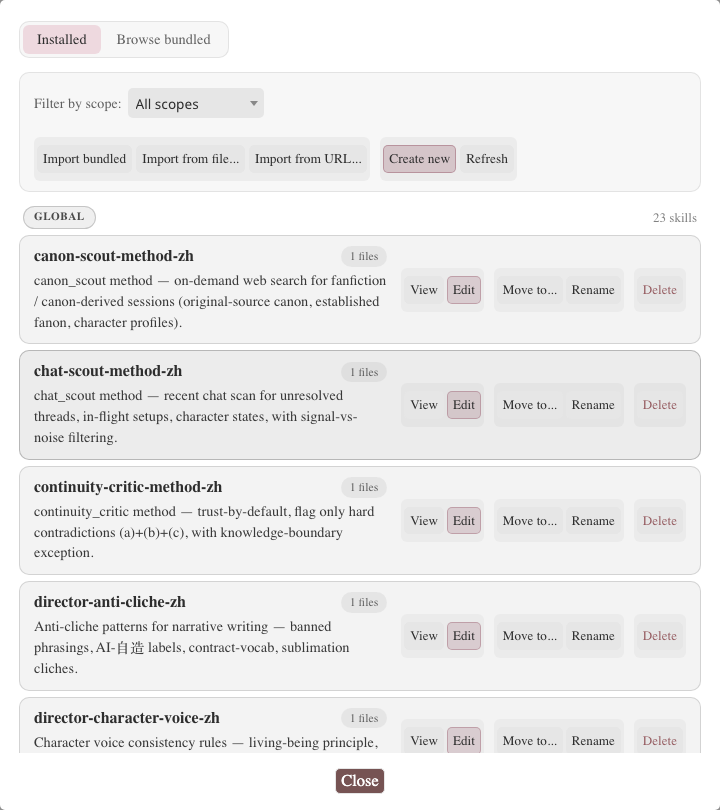
Tab 1 — Installed
Each row shows:
name— the skill's frontmattername. Click to open the inline editor.description— one-line summary from the frontmatter.scope— chip (global/preset/<api>/<name>/character/<file>).size— file count + total bytes.- Used by — chip count of agents in the active orchestrator profile that reference this skill in their visible list.
Row actions (right side):
| Action | What it does |
|---|---|
| View | Read-only Markdown render of SKILL.md. |
| Edit | Opens the inline editor (see Inline editor below). |
| Move to… | Atomic move to another scope. References (which use name only) stay valid. |
| Rename | Atomic rename within the current scope. The directory and frontmatter name update together. References that pointed at the old name turn grey (see Stale references). |
| Delete | Removes the skill directory. References continue to grey out instead of breaking dispatch. |
Bulk select
Toggle Multi-select at the top to get a checkbox per row. With ≥1 row checked, the toolbar gains a Pack selected into preset… action — see Embed export below.
Tab 2 — Browse bundled
The bundled tab compares your local copy of each shipped skill against what ships in default/skills/global/. Each row shows one of three states:
| Badge | Meaning |
|---|---|
| installed (matches) | Local copy is byte-identical to the bundled version. |
| installed (your version differs) | A local copy exists but its hash doesn't match the bundled one — you (or an iter-studio session) edited it. |
| not installed | No local copy. Click Install to materialize it into global. |
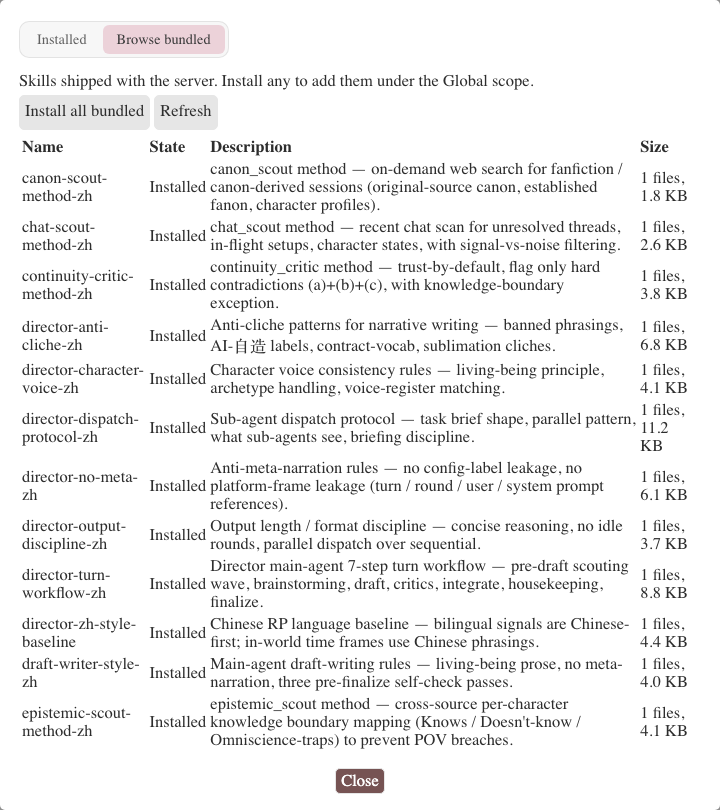
The Import all bundled button at the top of the tab is the convenience equivalent of clicking Install on every "not installed" or "differs" row — it overwrites all 24 bundled skills with the shipped versions.
Overwrite is destructive
Import all bundled doesn't merge — it overwrites. If you've edited event-summary-rules-zh locally, importing the bundled version replaces your edits. The button label spells out how many same-named skills will be overwritten before you click.
Tab 3 — Import
Four entry points:
Import from file
Upload a .zip of a single skill directory. The server validates the archive, previews any conflicts (per skill: new / same / different), and waits for your decision on each conflict before committing.
Import from URL
Paste an https://... URL pointing to a raw SKILL.md. The server fetches it and installs as a single-file skill (no sub-files). For multi-file skills, use Import from file with a zip.
Only HTTPS, only raw SKILL.md
The URL importer is intentionally narrow — it fetches one Markdown file. Anything more complex (multi-file, binary) needs the zip path. This keeps the import surface small and predictable.
Import bundled
The same action as Import all bundled in the Browse bundled tab. Listed here for discoverability.
Extract from character card / preset
When you import a character card (PNG) or preset (JSON) that has an embedded_skills_source field, Luker shows a preview dialog automatically:

The dialog lists every embedded skill with its conflict state. For each conflict, you choose Skip (keep your local version) or Replace (use the bundled version from the embed). Same-content (same) entries are silently no-op. New entries (new) install directly.
The embed payload is removed from the character card / preset on disk after extraction — the skills now live in skills/character/<file>/ or skills/preset/<api>/<preset>/. This avoids a "stale embed" trap where the inline payload diverges from the materialized files.
Inline editor
Clicking Edit on a skill row opens an in-popup editor:
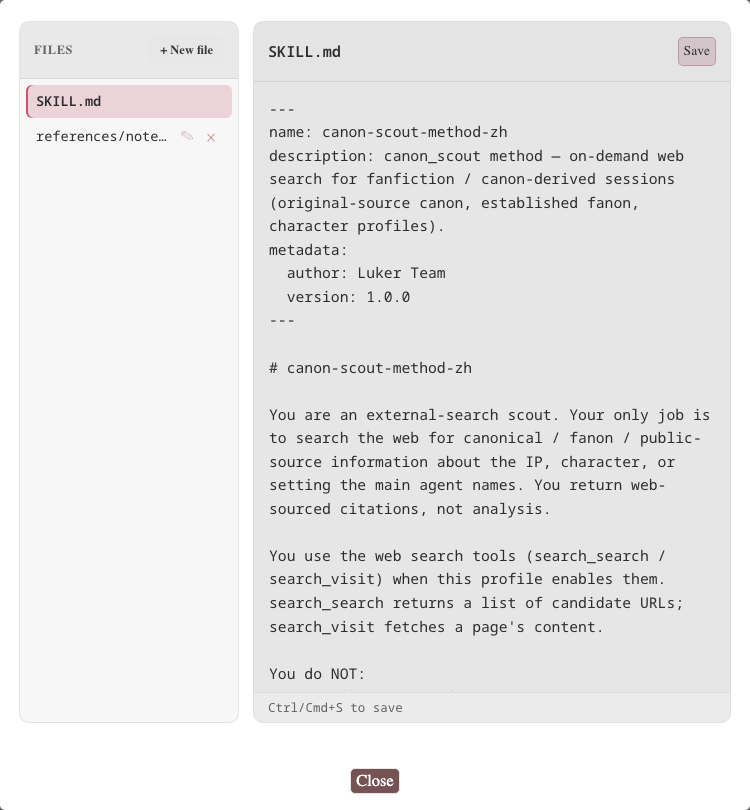
- Left pane: file tree (SKILL.md + any sub-files). Click to switch.
- Right pane: Markdown editor with YAML-aware frontmatter highlighting.
- Top bar: file path, dirty indicator, Save (writes through
.staging/and atomic-commits), Add file (creates a new sub-file at a path you specify).
Writes go through the same .staging/ discipline as install: the new content is validated (path safety, size limits, frontmatter parse), and only on full validation does the staging file atomically replace the original. Failed writes leave the original untouched.
SKILL.md is special — you can edit it but you can't delete it from the editor (it's the required entry point). The skill itself can be deleted from the row action.
Don't want to hand-edit?
The AI Iteration Studio can write and modify skills for you — describe the change in a sentence and the Studio drafts it through the same install path. Useful when you want a new skill or a rewrite of an existing one without typing the Markdown yourself.
Embed export — into presets and cards
Skills are most useful when they ship with the artifact that depends on them. A character card that needs a specific voice rule, a preset tuned for a particular sub-agent — both can carry the skills inline.
Packing into a preset
In the orchestrator panel, Preset Assistant derives an -orchestrator preset. Right after derivation, the assistant offers a Bundle skills with this preset link that opens the skill manager with multi-select mode pre-enabled. Pick the skills you want, click Pack selected into preset…, choose the target preset.
The packer writes the skills into the preset's extensions.luker.embedded_skills_source field. On the next preset save the embed rides with the JSON. Other Luker users who import that preset see the embed extraction dialog described above.
Packing into a character card
In the character editor, the Bundled skills section behaves the same way: select skills, pack, and they're written into data.extensions.luker.embedded_skills_source. On PNG export the embed serializes into the card's metadata, so distributing the card distributes the skills.
Threshold for inline vs zip
Small text-only skills use inline-files-v1 format (Markdown content embedded directly). Larger or binary skills auto-upgrade to archive-base64-v1 (zip + base64 + sha256). The packer picks per skill; you don't choose.
Scope migration
You can move a skill from global → preset → character (or back) at any time via the Move to… row action. The migration is an atomic filesystem rename — no copy, no temp state.
Why this is safe: orchestrator profiles reference skills by name only, never by scope. A skill named voice-rules resolves through later-wins precedence (character > preset > global) regardless of which scope it currently sits in. Moving the skill doesn't break any reference; it only changes when the skill is visible.
Typical migrations:
global→character— You authored a writing rule, used it across cards, then realized one card has a specialized variant. Move it to that card's scope and let the more general version stay inglobal. Now both coexist; the card-scope one wins when its card is loaded.preset→global— A skill you packaged with one preset turned out to be useful everywhere. Promote it.character→global— A card-specific skill that ended up generalizing. Promote it.
Stale references
When you rename or delete a skill that an orchestrator profile references, the profile's skills.visible list keeps the old name. The runtime can't find it, so the agent quietly doesn't see it (no error, no blocked dispatch).
In the orchestrator config editor, stale references are greyed out and tooltipped "skill not installed." Two clicks fix it — either rename in the profile, or re-add the skill.
This soft-fail discipline is deliberate. It means a missing skill never blocks an agent dispatch, and adding/removing skills doesn't require simultaneous profile edits.
Related
- Skills overview — what a skill is, the three scopes
- Authoring skills — write your own
- Orchestrator integration — wire skills to a profile
- Skills extension API — programmatic management from extensions
- Preset Assistant — derives
-orchestratorpresets and offers a skill-bundling link