TTS NPC Dialogue Attribution
With this feature on, quoted dialogue from several characters in one message can each play with its own voice: an AI pass in the background figures out who says each quoted line, discovered NPCs appear in the voice map automatically, and each quote gets its own play button.
Both English and CJK quotes count as dialogue ("…", “…”, 「…」, etc.).
Enable
Open Extensions → TTS drawer, pick a TTS provider and enable it first — attribution depends on TTS being enabled.
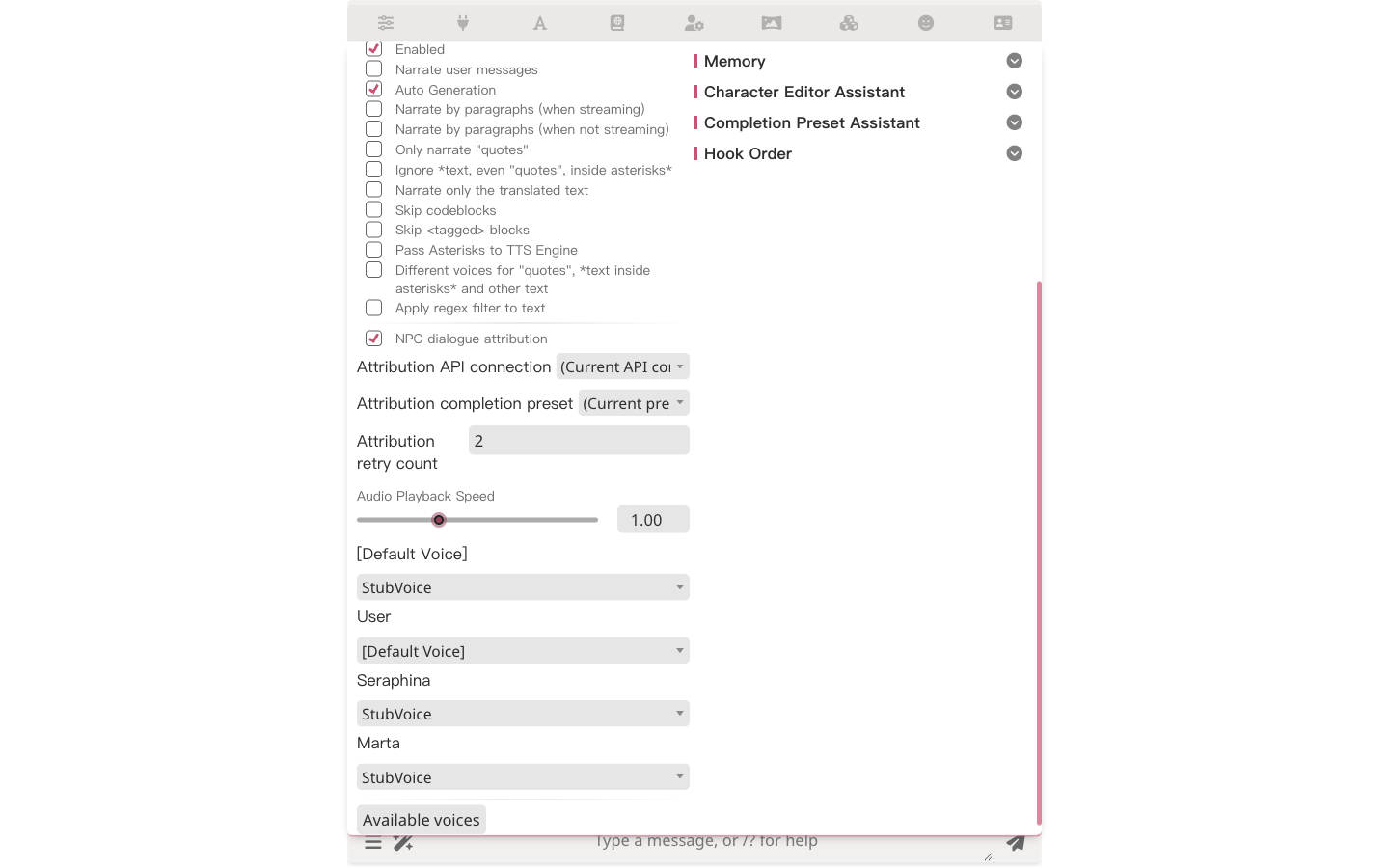
Scroll to the block below the regex settings and check NPC dialogue attribution.
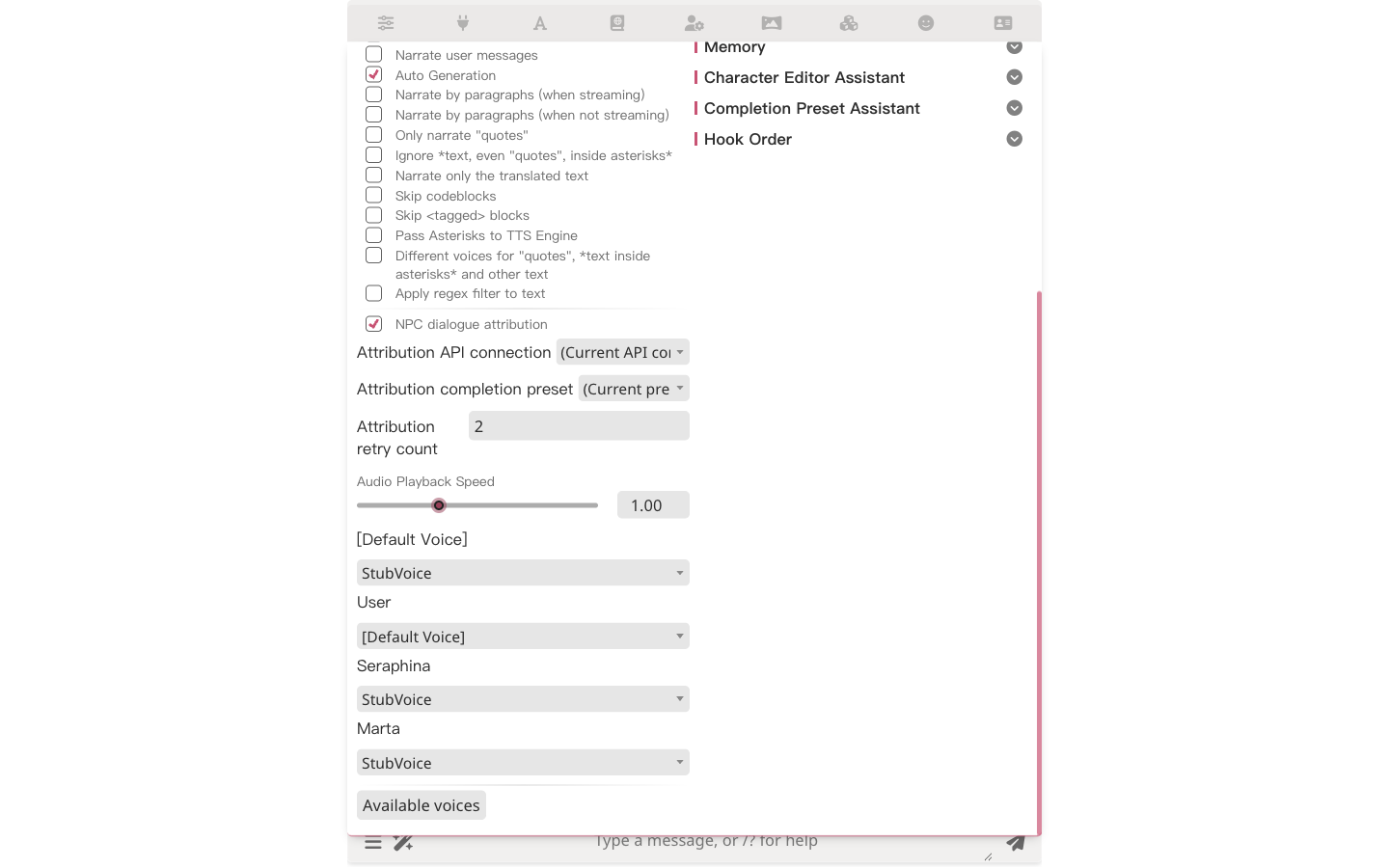
Pick the connection and preset the AI pass should use:
- Attribution API connection — which API connection runs the attribution pass. Leave it on the current API config if you only have one.
- Attribution completion preset — which chat completion preset the pass uses. Use a lightweight, fast preset here; this is a classification task, not creative writing.
- Attribution retry count — how many times to retry when the model returns an unusable answer. Default is 2.
Play a single line
Every quoted line in a message gets a small speaker icon at its end. Click it to play just that line, spoken with the attributed speaker's voice.

- Clicking a button plays the raw quoted line. The global narration filters (skip codeblocks, only narrate quotes, and so on) apply to whole-message narration, not to these per-line clicks.
- If the attribution pass has not finished for an old message, the button shows a spinner until the result arrives, then plays. If the pass fails, the line plays with the author's voice.
- On mobile, the buttons are hidden to avoid mis-taps during scrolling.
Assign voices to NPCs
All speaker voices live behind the Manage voices button in the Voice map section of the TTS panel. The button opens a popup listing every speaker — chat participants (the card character, group members, you) plus every configured NPC — one row per name, each with a voice dropdown and an NPC tag where applicable.
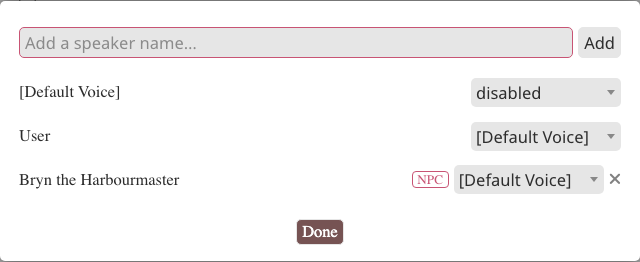
NPC names can be added two ways:
- Automatically. When the attribution pass discovers a new speaker in quoted dialogue, its name is added to the voice map following the Default Voice. Open Manage voices to give it a voice; the assignment is remembered across chats.
- Manually, in advance. In the Manage voices popup, type the NPC's name into the input at the top and click Add. Pre-configured names are handed to the attribution AI as candidate speakers, so lines from that NPC are recognized (and voiced) from the very first playback — no discovery pass needed.
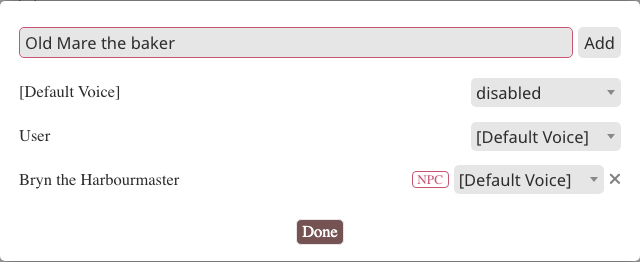
NPC rows (tagged rows that are not chat participants) can be removed with the ✕ button at the end of the row. Changes apply when the popup closes with Done.
Whole-message narration benefits too: from the second playback on, each line uses its own speaker's voice. The first playback of a fresh message may still use the author's voice — the background pass may not have finished yet.
When the built-in Different voices for quotes and text inside asterisks option is on, an attributed NPC gets the same slots (quotes / asterisk text / other). Set the NPC's quoted-dialogue slot to give its spoken lines a different voice from its narration.
FAQ
An NPC has no voice after the first playback. The background pass may still be running. Also check the NPC's row in Manage voices — it follows the Default Voice, which is disabled out of the box. Pre-adding the name (see above) avoids the wait entirely.
Buttons never appear on old messages. Buttons are added when a message renders or when you switch chats with the feature enabled. Reload the page, or switch to another chat and back, while the feature is on.
Does each message fire an AI call? Only character messages that contain quoted dialogue. Messages without quotes are skipped without any request, and results are cached until the message changes.
Technical Deep Dive
For curious readers and contributors
When the pass runs, and what it sees
After a character reply lands, Luker runs a small AI pass in the background (a single tool call — the model's only job is to fill in a speaker per quoted line). The pass reads the message's raw text, the two messages before it, and the current speaker roster: chat participants plus every name already in the voice map (manually pre-configured NPCs included). If a speaker isn't on the roster, the model may name them directly.
The first play-button click on an old message runs the same pass on demand.
Cache and invalidation
Results are stored per message in the chat's floor-state file, keyed by a hash of the message content. Editing or swiping a message invalidates its cache automatically; the next playback re-runs the pass. Attribution only affects voice selection during playback — message text and chat history are never modified.
Failed passes are not cached as failures: after retries run out, the line falls back to the author's voice and a warning is logged to the console.
Quote recognition
The same extraction rules as the quote highlighting in rendered messages: "…", “…”, «…», 「…」, 『…』, "…". Quotes inside code blocks or inline code don't count as dialogue.