Sync
Keep Luker data in step through paired LAN devices or encrypted S3 storage. Select the data categories for each backend; the same conflict, recovery and scheduling controls apply to both transports.
Open Sync and choose a backend
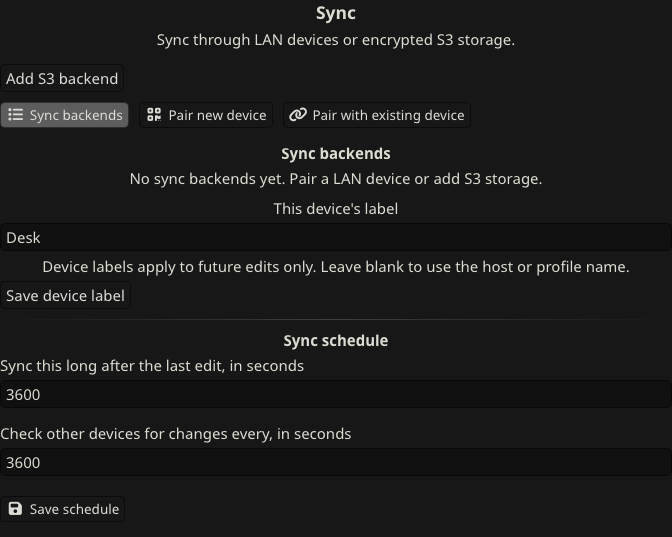
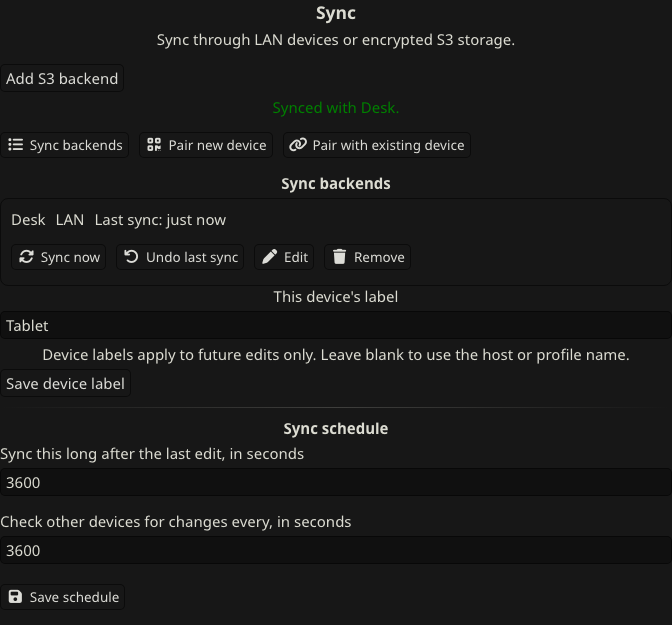
Open User Settings → Account → Backup & Restore → Sync → Open Sync. Choose Sync backends to view connections, the device label and the schedule.
| Connection | Setup |
|---|---|
| Direct connection between reachable Luker servers | LAN Sync. Upgrade both ends before syncing. |
| Shared encrypted storage accessible from different networks | S3 Sync. Devices use the same bucket, prefix and passphrase. |
For a one-time move to a new installation, see Migration.
Sync backends lists the backend label, LAN or S3 type, last sync and errors. Use Sync now, Undo last sync, Edit or Remove on the relevant row. S3 rows also provide Unlock for stored-key repair.
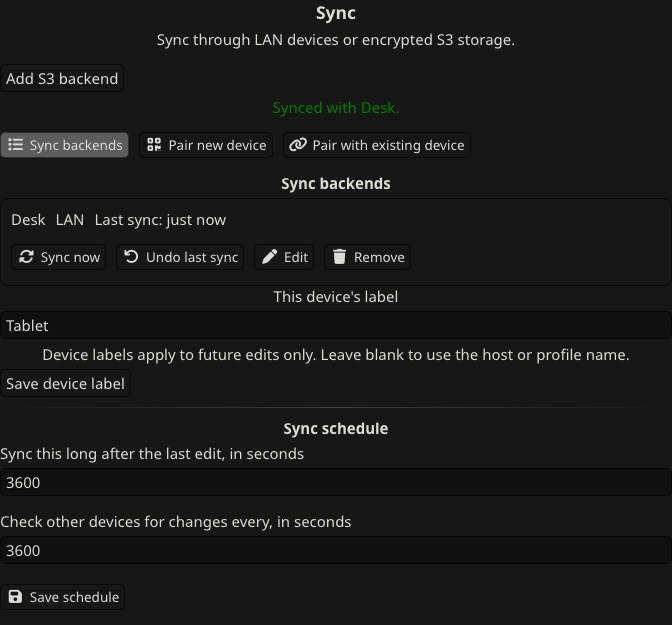
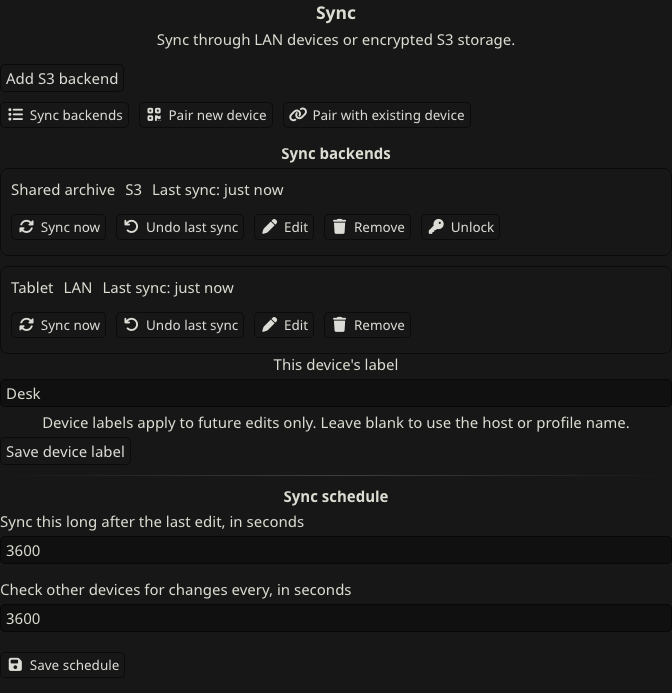
A backend label names a connection in this installation. This device's label identifies the origin of future edits in version cards and chat notices. Choose Save device label after changing it; leave it blank to use the host or profile name. Relabeling does not rename the origin of existing versions. Historical or generic versions can display Luker Sync.
Automatic sync and schedule
The Luker server starts sync:
- At server startup.
- After local writes have been idle for the configured period.
- At the configured polling interval, to receive changes from other devices.
- When a paired LAN device notifies it of changes.
- When you choose Sync now.
Under Sync schedule, set Sync this long after the last edit, in seconds and Check other devices for changes every, in seconds, then choose Save schedule. The defaults are 60 seconds after the last edit and 300 seconds between backend polls. Enter positive values.
Sync continues with the browser closed while the Luker server is running. Closing an app that stops its server also stops synchronization. An offline device or unavailable storage service is tried again at a later normal trigger; timing depends on connectivity and whether the servers are running.
The visible browser tab separately checks this Luker server's status on load and periodically, normally every 30 seconds and every 5 seconds during activity. These local status checks update the interface; they do not poll the remote backend or start a sync.
Activity and review
The status capsule names the active backend and shows an indeterminate loading strip. Activate it to open Sync. It retracts after a successful sync with no outstanding issue; failures, unknown status and unresolved items keep an entry available for action. Sync activity shares placement with other running activity.
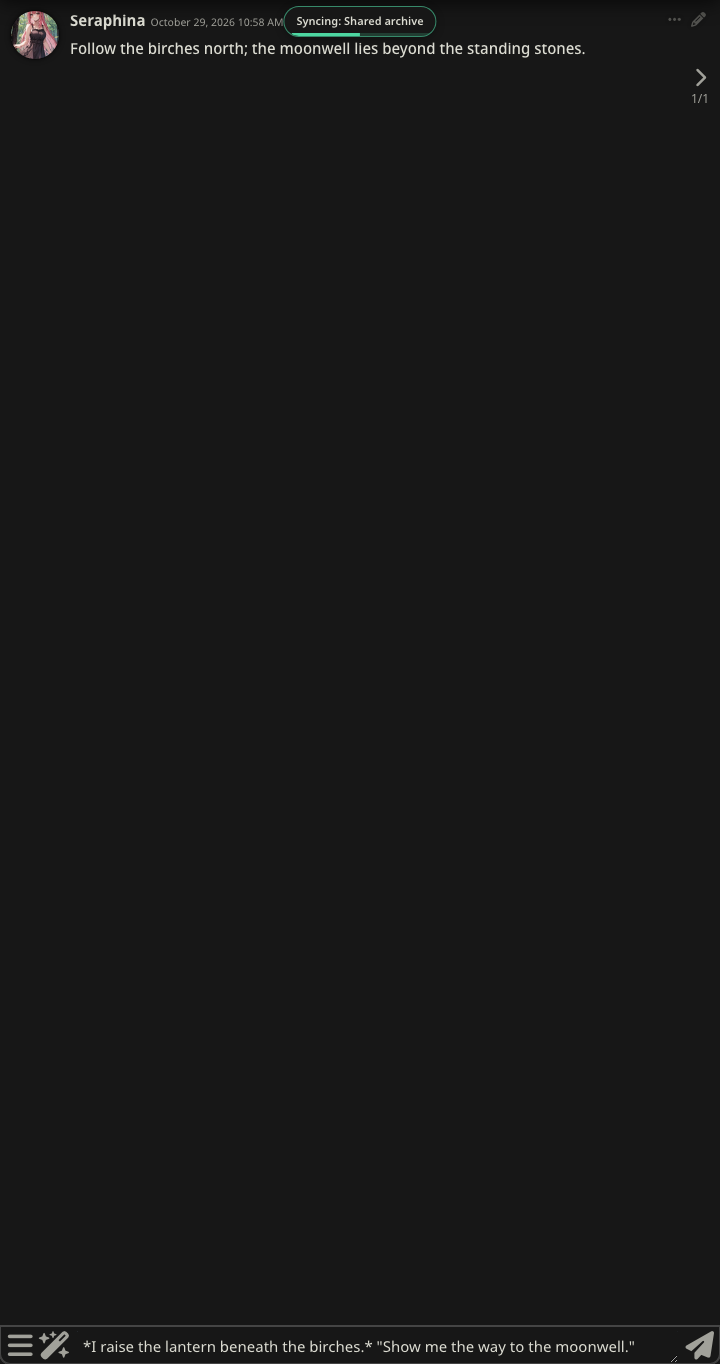
The capsule reports activity without a percentage or elapsed-time estimate. Status observation alone does not open the Sync panel. Use Review sync issues in that panel to reopen pending decisions and notices. The separate automatic conflict reminder still opens for pending items on page load and for newly found items during use.
Pending decisions
When incompatible changes require a decision, sync keeps a provisional version available and lists the file in Sync conflicts. That provisional data is usable while the decision remains pending. The same path reported by several backends is grouped together, and an applied decision propagates through the reporting backends.

Read the previews and the Version from … labels, rather than treating the left or right card as local or remote. A parent version is marked In use only when it exactly matches the provisionally kept content. A merged version can differ from both parents, so a conflict need not have that badge. Current version never receives it.
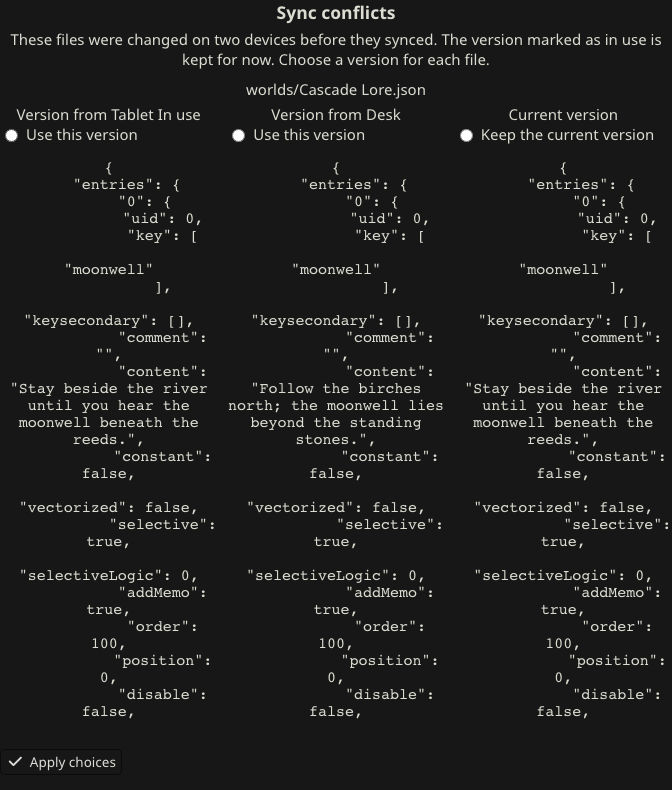
Choose Use this version or Keep the current version, then Apply choices. Decisions apply to the whole file where a choice is required. A Deleted preview represents deletion; choosing it deletes that file. Pending items reopen on page load until resolved or dismissed as appropriate.
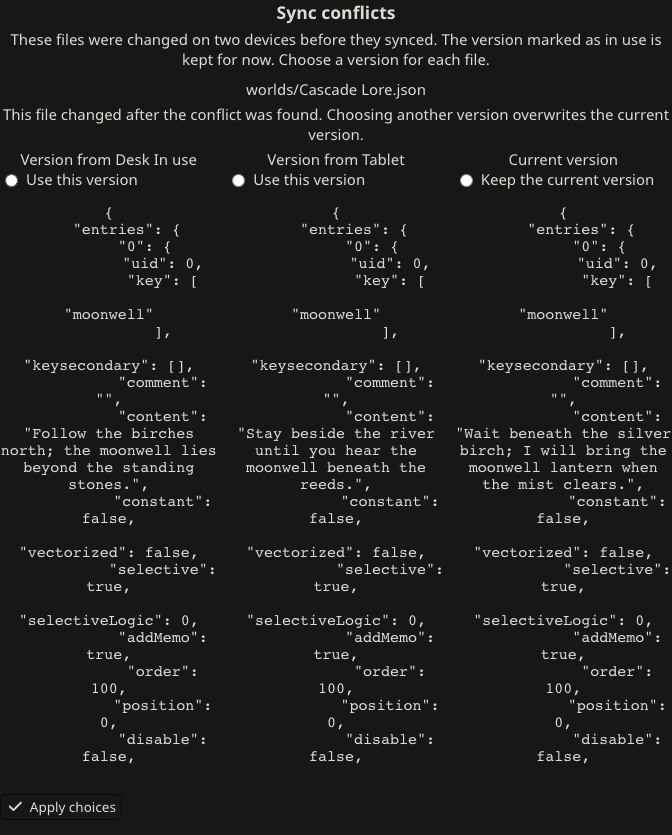
Changes made after a conflict
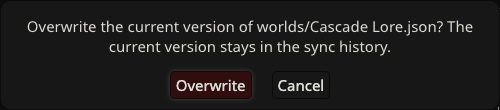
If the file changed again, the popup shows the current data and an overwrite warning. Keep the current version preserves that newer data. Choosing another version requires Overwrite confirmation; Cancel leaves the current data and the pending decision unchanged. The overwritten version remains in sync history.
Resolved on another device. means a readable result confirmed that the decision is no longer pending. An unreadable backend instead leaves its choice unknown. If Some pending sync records could not be read. appears, inspect the affected backend, restore connectivity or its valid data, and check again. Absence from an incomplete response does not establish resolution.
Files listed under Files sync cannot update still need attention. Inspect the reported paths, storage access and destination layout, correct the reported problem, then choose Sync now.
Automatic merges
Luker automatically combines character statistics, compatible last-opened-chat and date bookkeeping in groups and character cards, and compatible image-folder metadata. Incompatible content or folder changes still require a decision. Chat alternatives are handled as described below rather than always becoming file-choice cards.
Settings is enabled by default and remains a whole-file choice. Small configuration changes on different devices can conflict. Make configuration changes sequentially and sync before changing the other device.
Chat branches and restored chats
When concurrent chat edits produce an alternative version, Luker saves it as a branch and shows its originating device. Choose Open branch to review it, then use normal chat management to retain, merge or delete content intentionally. Dismiss removes the notice, not the saved branch.


If a chat is deleted on one device while another keeps editing it, sync restores the retained character or group chat, including its owning group when required. Choose Open chat to inspect the retained content. If deletion is still intended, stop competing edits, delete through chat or group management, then sync again.


Opening requires the target character or group and chat to exist. If the target is missing, opening is disabled or reports a failure. Dismissing a restoration notice leaves the restored content in place.
Categories and sensitive data
Choose categories when adding a backend and change them with Edit. The category labels below match the English interface.
| Selection | Categories |
|---|---|
| Enabled by default | Characters, Chats, Worlds, Card Apps, Skills |
| Enabled by default | Openai Presets, Novelai Presets, Koboldai Presets, Textgen Presets, Instruct, Context, Sysprompt, Reasoning |
| Enabled by default | Themes, MovingUI, Quickreplies, Assets, Backgrounds, Avatars, User Files, Comfy Workflows |
| Enabled by default | User Images, Image Metadata, Vectors, Stats, Settings |
| Opt-in | Secrets, Extensions |
Chats includes character chats, group chats and groups. Select User Images together with Image Metadata so images retain their folder assignments. Settings has the whole-file conflict risk described above. Review Extensions before enabling it because installed code and versions can differ between devices.
Secrets includes API credentials and is disabled by default. LAN traffic without TLS exposes transferred data, including selected secrets, to the network. S3 encrypts synchronized contents before storage, but HTTP still exposes endpoint credentials in transit. Use trusted connections and prefer HTTPS; bucket encryption does not replace transport security.
Thumbnails, device-local image caches, automatic chat backups, storage-migration archives, runtime logs, server cookie secrets and sync's local state are outside the synchronized categories.
Undo and recovery
Choose Undo last sync on the relevant backend to revert changes brought in by its last sync. Undo creates a new synchronized change: other devices receive it and history remains. Files edited after that sync retain their newer data and are reported in the result.
A failure to apply Undo locally is an error, and a propagation failure does not mean the other devices have reverted. Restore the backend's availability and choose Sync now to send a committed Undo that has not propagated. A committed Undo consumes its undo point; do not rely on that same point remaining available afterward.
Use a full ZIP backup as a separate recovery option before a major data change.
Read and storage errors
Could not refresh sync backends. The last loaded configuration is still displayed. preserves the last loaded rows. Could not read sync status. Check the connection and retry. leaves known pending data visible with uncertain status. Restore the connection, reopen Sync or check again before making decisions from those rows.
If an error identifies unreadable or malformed private sync configuration, ask the administrator to restore read access or a known-good copy of the reported file before editing sync settings. Damaged configuration is an error, not an empty new setup.
If reported names cannot be stored distinctly on the destination filesystem, or a category path passes through a symbolic link, ask the administrator to correct the names or storage layout while preserving the original data. Sync does not automatically rename the source or delete it to resolve these errors. Retry after the destination is compatible. Recovery requires a valid retained copy or backup.
Storage modes and administrator policy
Sync supports file storage, SQLite, MySQL and PostgreSQL, including connections between different storage modes. Database-backed data is synchronized per resource or record, not by copying the entire database. The database connection belongs to its Luker instance; a peer does not need direct access to that database server.
LAN servers must reach each other. S3 devices need access to the same storage hub, not the same LAN.
On multi-user installations, non-admin accounts are restricted from outbound LAN and S3 connections to private, loopback and link-local destinations by default. Administrators and single-user installations with accounts disabled are exempt. Ask an administrator about private-address policy if a private endpoint is blocked.